
Garmin Watch Screenshot Mockup Generator

Garmin watch screenshot mockups for macOS.

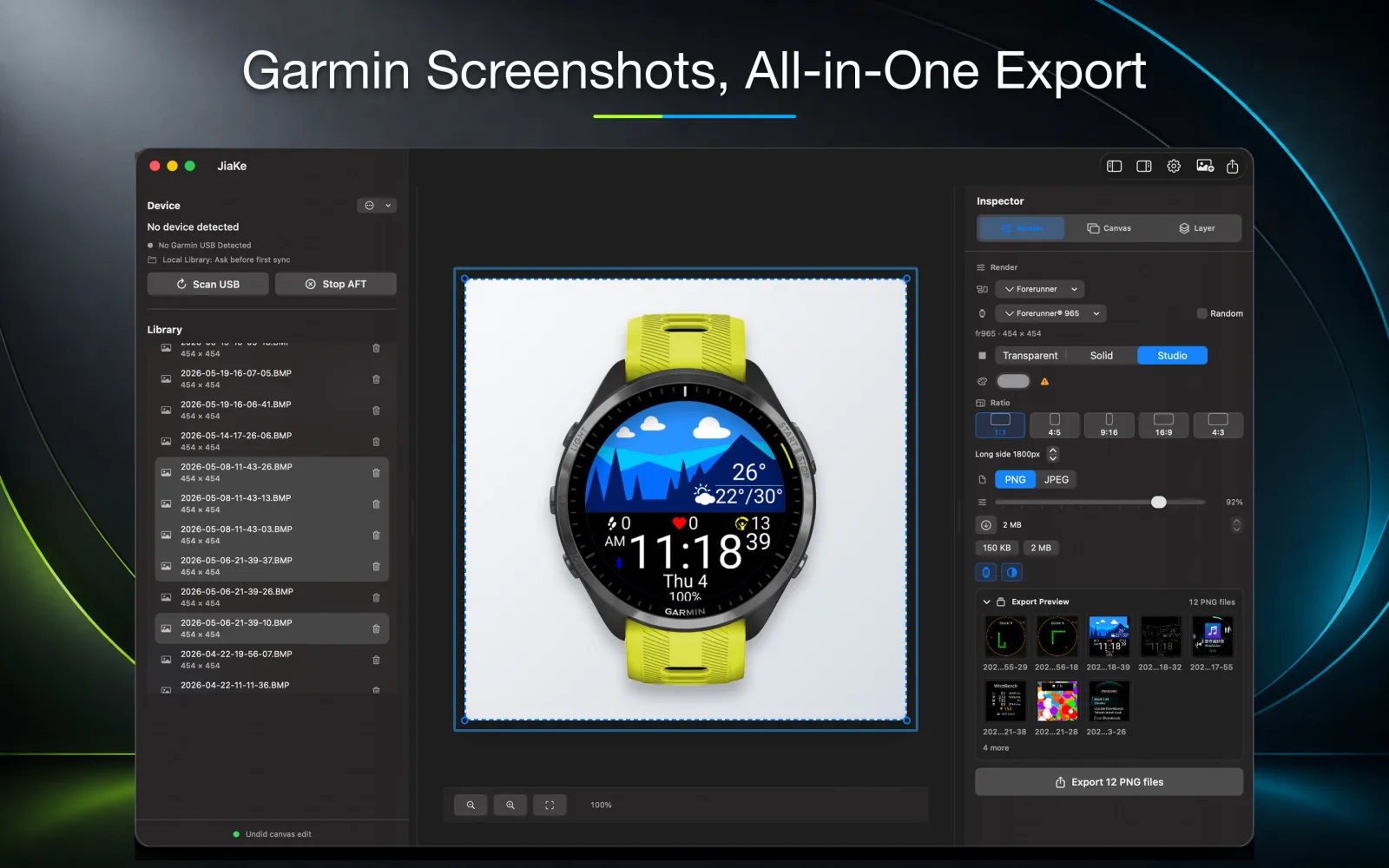
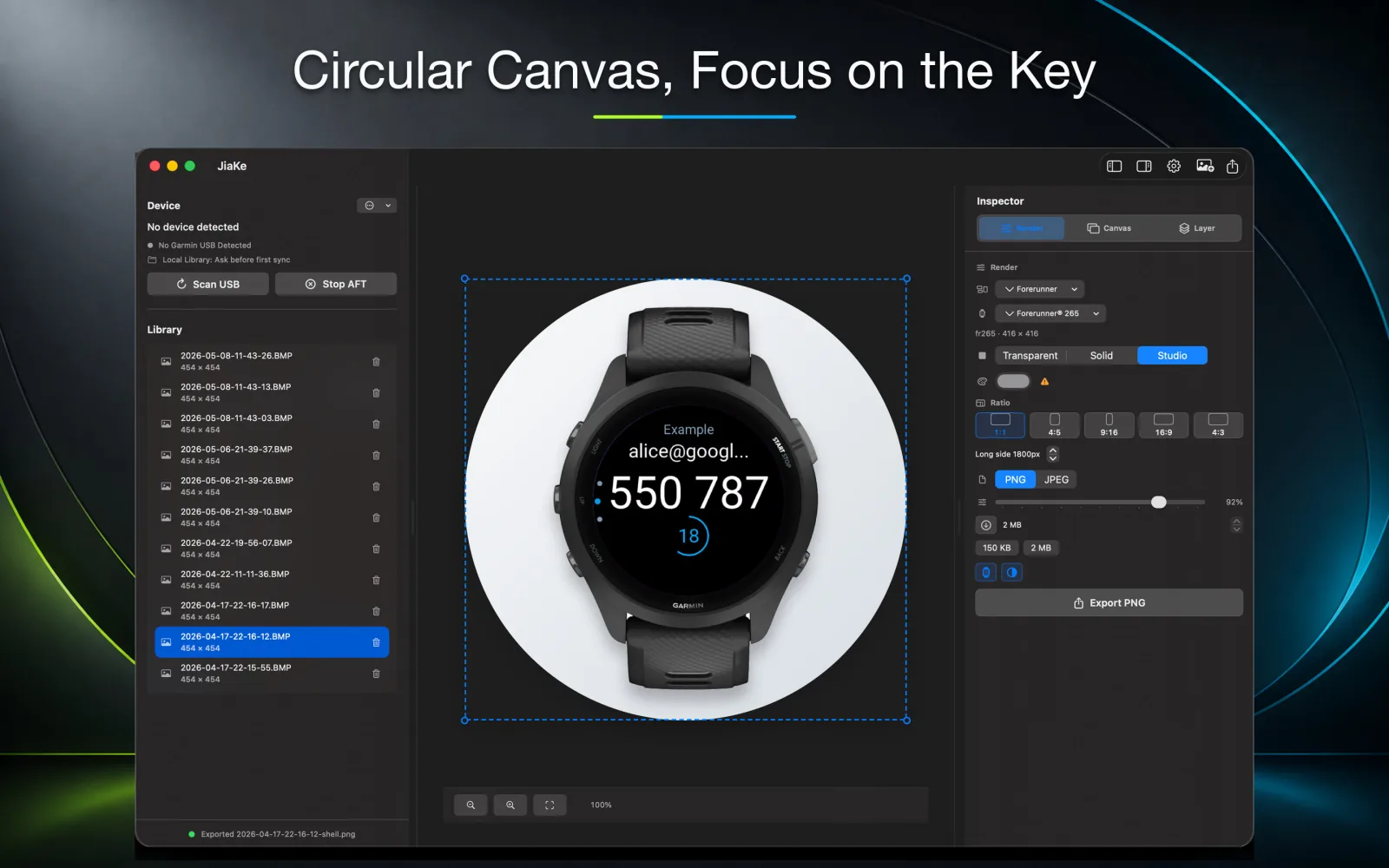
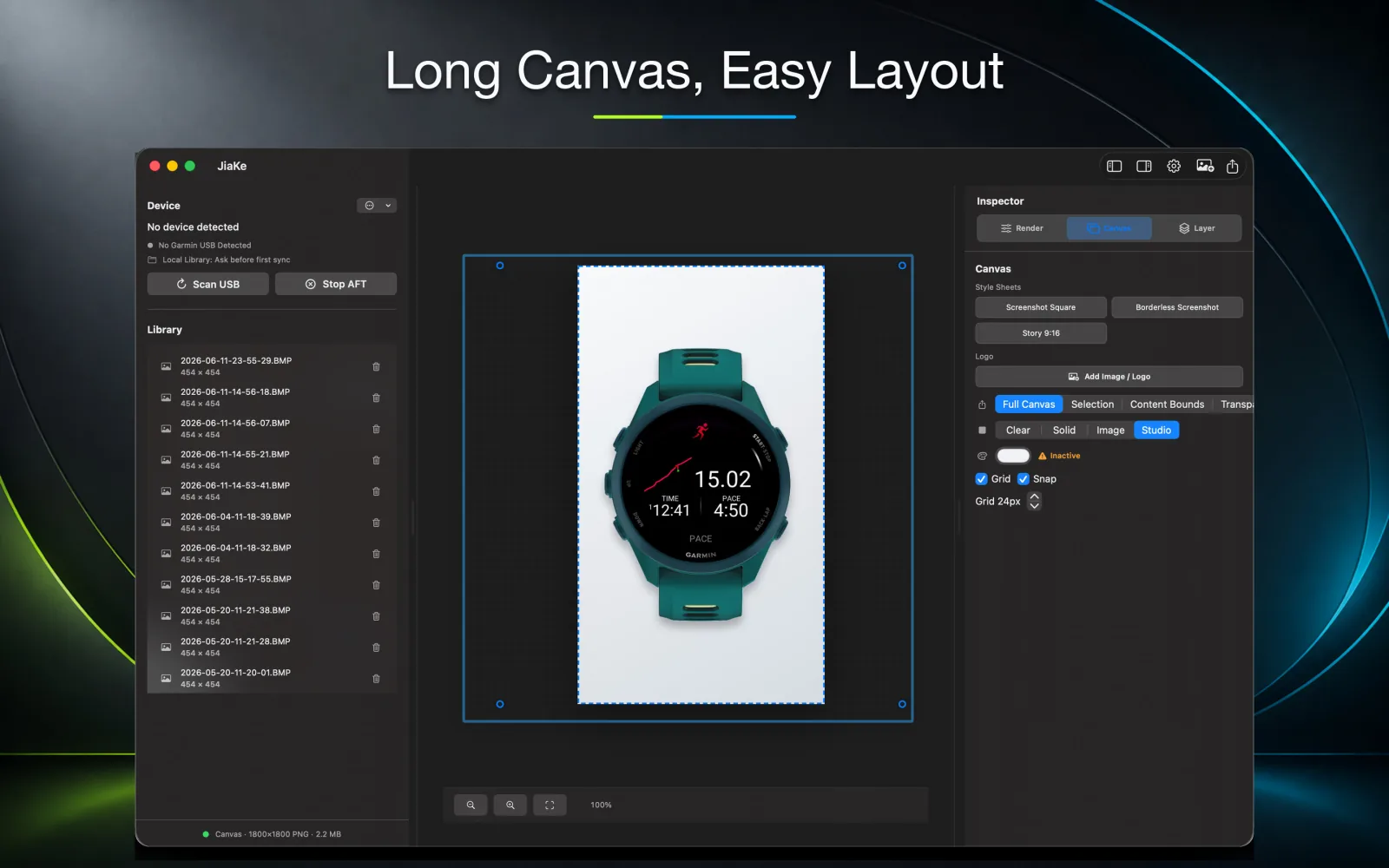
JiaKe.app frames real Garmin BMP screenshots for Connect IQ apps, watch faces, Connect IQ Store listings, product posts, and release notes.

workflow comparison

From cable, folders, and design-tool cleanup to three clear steps.

The old process is not just export. You connect the watch, dig through GARMIN/SCRNSHOT, drag files locally, move them into a design tool, prepare frame files, mask the screens, manage layers, and export again.

Before8 steps · 3 phases

Three handoff-heavy phases before every polished asset.

With JiaKe.app3 steps

Connect the watch, auto-copy screenshots, frame and export.

Time savedMinutes / image

Each image can save minutes, and a full release can save tens of minutes.

Before8 steps

Traditional workflow

The work is split across USB transfer, Android File Transfer, local folders, and a separate design app.

01

Export screenshots

Getting the BMP files out of the watch is already a manual file-transfer job.

  1. USBConnect the Garmin watch to the Mac with a cable
  2. AFTOpen Android File Transfer and browse into GARMIN/SCRNSHOT
  3. DragSelect the screenshots and drag them into a local folder
02

Import and process

The screenshot then moves into a design app, where the real cleanup begins.

  1. DesignDrag images into Figma, Sketch, Photoshop, or another editor
  2. FramesFind watch frame files and prepare them for the current layout
  3. MaskCrop each screenshot into the round or square screen shape
  4. LayersPlace the screen inside the frame and set the correct layer order
03

Export again

After alignment and layer work, every final asset still needs to be exported.

  1. ExportExport each cover, preview, story image, or long canvas separately
With JiaKe.app3 steps

JiaKe.app workflow

JiaKe.app automates the file copy and keeps framing, presets, preview, and export in one local Mac app.

  1. 1Plug the watch into your computer with the cable
  2. 2JiaKe.app automatically copies watch screenshots into a local directory
  3. 3Select an image, place it into the watch frame you want, choose rich style presets, and export

ResultTime is money. Automating screenshot prep saves release time and real production cost.

Latest articles

Practical Garmin screenshot workflows.

Read recent guides on Garmin screenshot mockups, Connect IQ release images, BMP exports, frames, presets, and faster launch workflows.

View all articles

Garmin screenshot mockup FAQ

What is JiaKe.app?

JiaKe.app is a macOS app for turning real Garmin BMP screenshots into framed PNG mockups for app listings, product pages, docs, and social posts.

Can I make Connect IQ app and watch face screenshot frames?

Yes. Import screenshots from a connected Garmin watch, MTP workflow, or local folder, then choose a device frame for Connect IQ apps, data fields, widgets, and watch faces.

Does JiaKe.app replace Photoshop or Figma for Garmin screenshot mockups?

For repeatable Garmin watch screenshot frames and batch exports, yes. JiaKe.app keeps the import, framing, preview, and export steps inside one focused Mac app.

Do my Garmin screenshots leave my Mac?

No. Normal screenshot processing happens locally on your Mac, and JiaKe.app does not upload screenshots, project files, or exported mockups as part of the standard workflow.