Garmin watch screenshots are usually stored on the watch itself, not inside Garmin Connect. After you capture a screenshot, connect the watch to a computer and look in the watch storage under GARMIN\ScreenShot.
The screenshot file is commonly a .BMP image. That makes the capture useful as raw source material, but it also means the file usually needs one more step before it is ready for a website, Connect IQ Store listing, support page, or launch post.
This guide covers where to find Garmin screenshots, how to view Garmin screenshots after copying them, what to do if the folder is missing, and how to turn the raw BMP capture into a finished image.
Quick answer
Check this location first:
| Item | What to look for |
|---|---|
| Storage root | The Garmin watch mounted over USB or MTP |
| Main folder | GARMIN |
| Screenshot folder | GARMIN\ScreenShot |
| Common file format | .BMP |
| How to view | Copy the BMP file locally, then open it or convert it to PNG |
| Next step | Copy the file to your computer before editing |
If you are on a Mac, the watch may not appear like a normal Finder drive. Many Garmin devices use MTP, so you may need Android File Transfer, OpenMTP, or a dedicated workflow that reads the device storage for you.
Direct answers to common screenshot questions
Where do I find my Garmin screenshots?
Connect the Garmin watch to a computer, open the watch storage, and check GARMIN\ScreenShot. The saved files are usually BMP screenshots, so copy them to your computer before converting, framing, or uploading them.
How to view Garmin screenshots?
Copy the BMP files from GARMIN\ScreenShot to your computer first. Then open the copied BMP in an image viewer, convert it to PNG, or import it into a screenshot workflow such as JiaKe.app when you need a framed export.
Garmin screenshot folder
The Garmin screenshot folder to check is GARMIN\ScreenShot on the watch storage. It is a device folder, so you normally access it over USB or MTP instead of inside Garmin Connect.
Where do I find my saved screenshots?
Saved Garmin watch screenshots are normally on the watch storage, not in Garmin Connect. Start with GARMIN\ScreenShot; if you do not see the folder, search the device storage for .BMP files and confirm that the screenshot shortcut actually created a file.
Garmin screenshot iPhone
An iPhone can take screenshots of the Garmin Connect app, but that is different from a Garmin watch screenshot. The raw watch screenshot file is usually stored on the watch itself, so you normally retrieve it by connecting the watch to a computer over USB or MTP. After converting the BMP to PNG, you can send the PNG to an iPhone like any normal image.
Cannot access screenshots from Garmin Connect app?
If you cannot find watch screenshots in the Garmin Connect app, that is usually expected. Garmin Connect is not normally the place where the raw screenshot file created by the watch is stored or exported. The screenshot file usually stays on the Garmin device storage, so the practical route is to connect the watch to a computer and copy the BMP file from GARMIN\ScreenShot.
This is different from taking a phone screenshot of Garmin Connect. A phone screenshot captures what is visible in the app on your iPhone or Android device. A Garmin watch screenshot captures the watch screen itself and is normally retrieved from the watch storage. After copying it, convert the BMP to PNG for easier sharing, or place it inside a watch frame if you want a cleaner image for a post, note, or product page.
Delete Garmin Screenshot
After saving the BMP file to your computer, you can delete screenshot files you no longer need from GARMIN\ScreenShot. Delete only the screenshot files, not unrelated Garmin folders or system files.
Garmin Connect and Garmin Express
Garmin Connect is useful for syncing activities and viewing account data. Garmin Express is useful for device setup, updates, and management. Neither is usually the file browser for saved watch screenshots; for the screenshot BMP, check the watch storage directly.
Garmin photos
Garmin photos can mean activity photos, phone photos used in watch-face tools, or screenshot files. Watch screenshots are usually BMP files in GARMIN\ScreenShot, while Garmin Connect activity photos and Face It-style watch-face photos follow different workflows.
How to find Garmin screenshots on Mac
- Capture the screenshot on the Garmin watch using the shortcut or hotkey supported by that model.
- Connect the watch to the Mac with a USB cable.
- Open the watch storage with the file-transfer tool that works for your device.
- Open the
GARMINfolder. - Open
GARMIN\ScreenShot. - Copy the
.BMPscreenshot files to a local folder on the Mac.
Copying the files locally matters. It avoids accidental edits on the watch, makes the files easier to back up, and gives screenshot tools a stable source folder to work from.
If you use JiaKe.app, the app can handle the local screenshot workflow after the watch is connected. The goal is to shorten the path from raw Garmin screenshot to publish-ready PNG or JPEG export.
How to find Garmin screenshots on Android
On Android, the screenshot is still stored on the Garmin device first. The phone needs to act as the USB host, read the connected watch storage, and copy the screenshot file before it can appear in a local gallery or export workflow.
The practical Android path is:
- Capture the screenshot on the Garmin watch.
- Connect the watch to the Android phone with a USB data cable or USB-C adapter.
- Grant USB access if Android prompts for permission.
- Look for common folders such as
GARMIN/SCREENSHOT,GARMIN/SCRNSHOT, or a similarly named screenshot folder. - Copy the BMP screenshot to the phone before converting, framing, or sharing it.
If you want the full phone-side workflow, see how to export Garmin watch screenshots on Android. That guide covers USB permission, Android file access, BMP-to-PNG export, saving to Photos, and when the Android app makes more sense than the Mac workflow.
How to view Garmin screenshots after copying them
The safest way to view Garmin screenshots is to work from a copied file, not directly from the watch storage.
- Copy the
.BMPfiles fromGARMIN\ScreenShotto a local folder. - Open the copied BMP in an image viewer that supports bitmap files.
- If the viewer does not show the file correctly, convert the BMP to PNG.
- Keep the original BMP unchanged as the source capture.
- Use the PNG or framed export for sharing, documentation, Connect IQ listings, or launch posts.
For a quick plain image, use the Garmin BMP to PNG converter. For a product screenshot, use a Garmin screenshot frame so the watch screen appears inside a device context.
How to find Garmin screenshots on Windows
On Windows, a Garmin watch may appear in File Explorer when connected over USB. The path to check is still the watch storage, then GARMIN\ScreenShot.
The practical steps are similar:
- Open File Explorer.
- Select the connected Garmin device.
- Open
GARMIN. - Open
GARMIN\ScreenShot. - Copy the
.BMPfiles to a local folder before converting or editing them.
Even if your final tool is on Mac, keeping a clean source folder with the original BMP files helps when you need to regenerate screenshots for a release.
Why the folder is easy to miss
The folder name is usually shortened. Many people search for "screenshots" and miss GARMIN\ScreenShot.
The second reason is transfer mode. On macOS, a Garmin watch often does not behave like a normal Finder volume. You may see the watch in a transfer app, but not in Finder. That makes the folder feel hidden even when the screenshot exists.
The third reason is model variation. Garmin support documents point to screenshot folders such as GARMIN\ScreenShot, while some Garmin device families and older community posts may mention names like GARMIN\ScreenShot. If GARMIN\ScreenShot is missing, search the Garmin storage for .BMP files before assuming the screenshot failed.
Why Garmin screenshots are BMP files
Garmin screenshots are often stored as BMP files because BMP is simple and preserves the raw screen capture without compression artifacts. That is useful for accuracy, especially when the screenshot contains small text, icons, data fields, or watch face complications.
The tradeoff is that BMP is not the best publishing format. It can be larger than needed, less convenient for web workflows, and not as easy to use in store listings or documentation.
For most publishing workflows, treat BMP as the source file and PNG or JPEG as the export format.
What to do after you find the screenshot
Finding the screenshot is only the first part of the workflow. A raw Garmin BMP file usually looks like a small isolated UI capture. For release assets, you often need:
- A PNG or JPEG export.
- A watch frame or device context.
- Consistent padding and background.
- A size that works for the Connect IQ Store, documentation, websites, and launch posts.
- A compression setting that stays under upload limits.
For simple sharing, a direct Garmin BMP to PNG converter may be enough. For product screenshots, a Garmin screenshot frame usually makes the image easier to understand.
A practical folder workflow
Use a repeatable folder structure so you can rebuild assets later:
| Folder | Purpose |
|---|---|
source-bmp | Original files copied from GARMIN\ScreenShot |
working | Edited or staged files |
exports/png | PNG assets for listings and documentation |
exports/social | Square or long-canvas images for posts |
archive | Previous release screenshots |
This structure is simple, but it saves time. When a Connect IQ app, watch face, widget, or data field needs updated screenshots, you can reuse the same source folder and export rules instead of starting again from the watch.
Use JiaKe.app after the screenshot is found
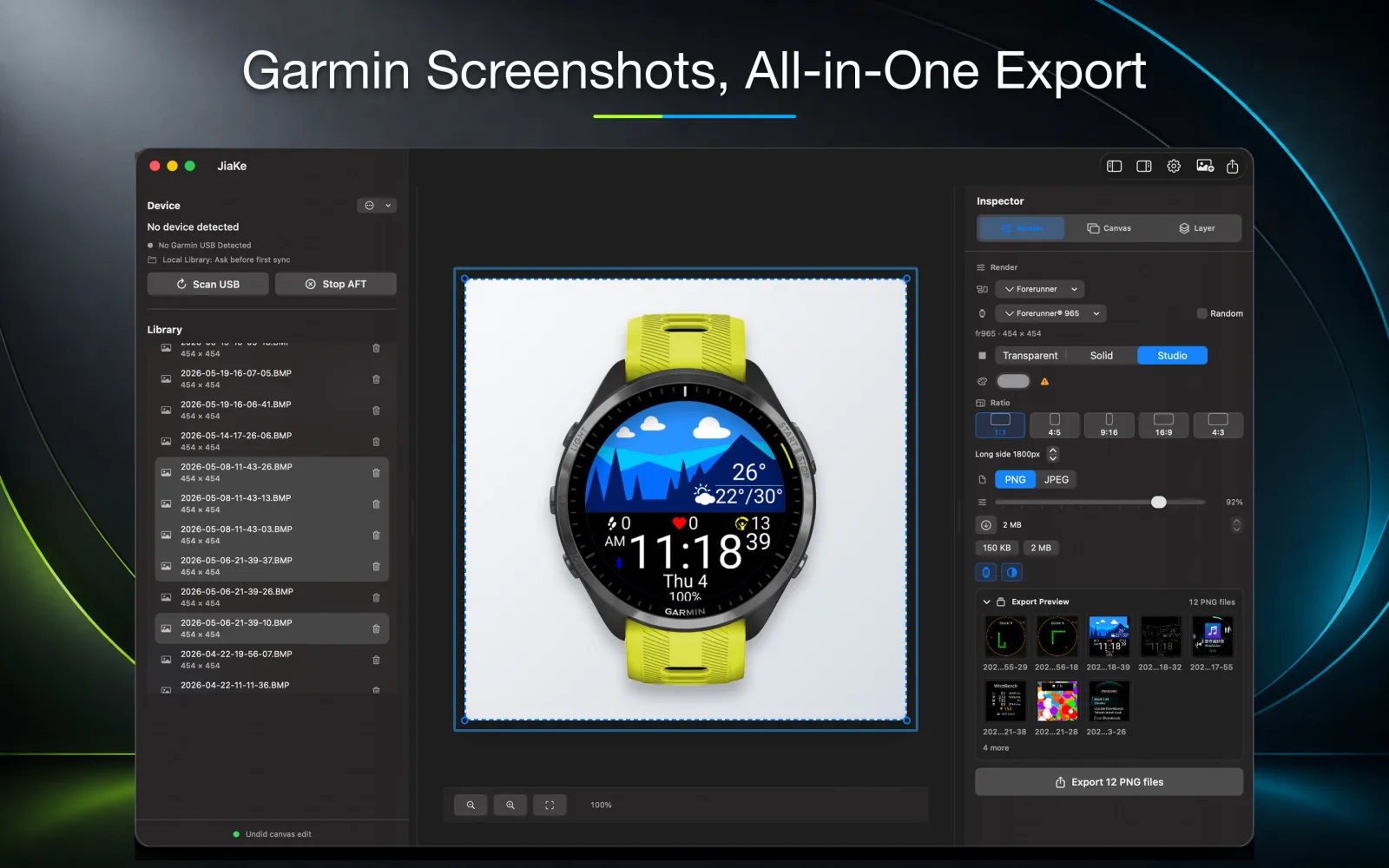
JiaKe.app is designed for the workflow after the Garmin screenshot exists. It can import Garmin screenshots, place them inside device frames, apply reusable styles, preview the result, and export PNG or JPEG assets.
The important point is that JiaKe.app keeps the screenshot workflow local. The original watch capture stays on your Mac, and the export is derived from that real screenshot.
Use it when you want to move from GARMIN\ScreenShot to a polished image without rebuilding frame masks, layer order, spacing, and export settings in a general design tool.
Troubleshooting
I captured a screenshot but cannot find GARMIN\ScreenShot
Reconnect the watch, wait for the storage to appear, and search for .BMP files inside the Garmin device. If the folder still does not appear, check whether your model requires a different screenshot shortcut or a hotkey setup.
The watch does not appear in Finder
That is common for MTP devices on macOS. Use the transfer method supported by your device, or use a workflow that can read the Garmin device storage and copy screenshots locally.
The screenshot is too small for a listing
The source screenshot uses the watch screen resolution, so it may be physically small. Build a larger export around it with a frame, padding, and background rather than stretching the raw screen too aggressively.
The BMP opens but the colors look wrong
Keep the original file and test a second viewer or converter. Do not overwrite the source BMP. Convert to PNG only after you confirm the screenshot looks correct.
FAQ
What folder should I check for Garmin screenshots?
Check GARMIN\ScreenShot on the watch storage. The folder name is commonly uppercase and shortened to GARMIN\ScreenShot, not screenshots.
Where do I find my Garmin screenshots?
Look on the watch storage after connecting the Garmin device to a computer. The first folder to check is GARMIN\ScreenShot.
Where do I find my saved screenshots?
Saved Garmin screenshots are usually BMP files inside GARMIN\ScreenShot. Copy them to a local folder before editing or converting them.
Can I find Garmin screenshots on iPhone?
Usually not as raw watch screenshot files. Use an iPhone screenshot for Garmin Connect screens, but use USB or MTP on a computer for saved screenshots from the watch itself.
Why can't I access Garmin screenshots from the Connect app?
Garmin Connect usually does not expose the raw watch screenshot BMP files. To access screenshots created by the watch, connect the watch to a computer and check GARMIN\ScreenShot on the device storage.
How do I delete Garmin Screenshot files?
Copy the BMP files first, then delete only the unwanted screenshot files from GARMIN\ScreenShot on the watch storage.
Are Garmin photos the same as watch screenshots?
No. Garmin photos may refer to activity photos or photo watch faces. Watch screenshots are separate BMP files saved by the watch screenshot feature.
Are Garmin screenshots usually BMP files?
Yes. Garmin watch screenshots are often stored as BMP files. Copy the BMP files to your computer before converting, framing, or exporting them.
How do I view Garmin screenshots?
Copy the BMP files from GARMIN\ScreenShot to your computer, then open the copied BMP locally or convert it to PNG for easier viewing and sharing.
Can I find Garmin screenshots in Garmin Connect?
Usually no. The screenshot file is stored on the watch storage, so you normally retrieve it by connecting the watch to a computer.
Can I find Garmin screenshots in Garmin Express?
Usually no. Garmin Express can help manage and update a device, but the raw screenshot BMP file is normally retrieved from the watch storage folder GARMIN\ScreenShot.
Should I keep the original BMP file?
Yes. Keep the original BMP as the source capture. Export PNG or JPEG versions from it for listings, documentation, product pages, and posts.
Can JiaKe use screenshots copied from GARMIN\ScreenShot?
Yes. JiaKe.app is built around real Garmin screenshots and can turn BMP captures into framed PNG or JPEG exports.