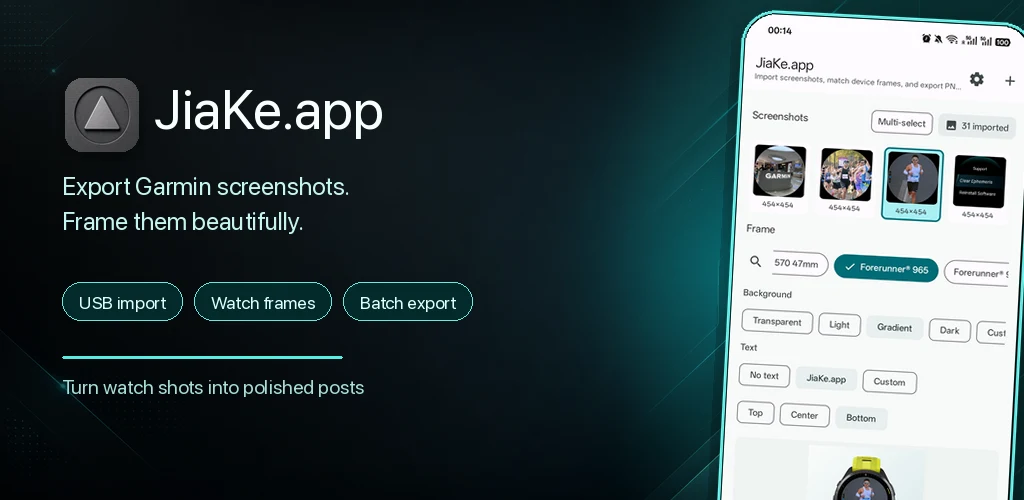
Garmin watch screenshots are useful for bug reports, Connect IQ app listings, watch face launch posts, documentation, and quick sharing. The confusing part is that a screenshot captured on the watch usually does not appear automatically in your Android photo gallery or inside Garmin Connect.
In most Garmin screenshot workflows, the capture is saved as a file on the watch storage. That means the practical Android workflow is:
- Capture the screenshot on the Garmin watch.
- Connect the watch to your Android phone with a USB data cable.
- Copy the screenshot from the watch storage.
- Convert or export it into a shareable PNG.
- Save it to Photos or share it with your team.
JiaKe.app for Android is built for that path. It helps detect a connected Garmin watch, copy screenshots from the watch, preview them with Garmin device frames, and export polished PNG images from the phone.
Quick answer
To export Garmin watch screenshots on Android, connect the watch to your Android phone with a USB data cable and a USB-C adapter if needed. Open JiaKe.app, grant USB access when Android asks, copy the watch screenshots into the app, choose the matching Garmin frame, then save or share the exported PNG.
If you are doing it manually, browse the connected watch storage and look for a screenshot folder such as GARMIN/SCREENSHOT or GARMIN/SCRNSHOT. The source files are often BMP screenshots, so copy them to the phone before converting or sharing them.
Why screenshots do not just appear in your phone gallery
Garmin Connect syncs health data, activities, settings, and many device features, but raw watch screenshot files are usually a different kind of file. They are saved on the watch storage, not as normal phone photos.
That is why many users can take a screenshot on the watch, see a success message, and still wonder where the image went. The screenshot exists, but it is sitting in a device folder that normally has to be opened over USB or MTP.
On a computer, this often means opening Garmin device storage and checking a folder named SCRNSHOT, SCREENSHOT, or ScreenShot. On Android, the same idea applies, but the phone must be able to act as the USB host and read the Garmin device.
What you need
Before you start, check these basics:
- A Garmin watch that supports screenshots.
- An Android phone or tablet with USB host support.
- A USB data cable. Many charging cables do not transfer data.
- A USB-C to Garmin cable or USB-C adapter if your cable needs one.
- JiaKe.app for Android, or another file workflow that can read connected Garmin storage.
If Android never shows a USB permission prompt and the watch does not appear anywhere, try another cable first. A power-only cable is one of the most common reasons this workflow fails.
Method 1: Export Garmin screenshots with JiaKe.app on Android
Use this path when you want the phone to handle the screenshot workflow end to end.
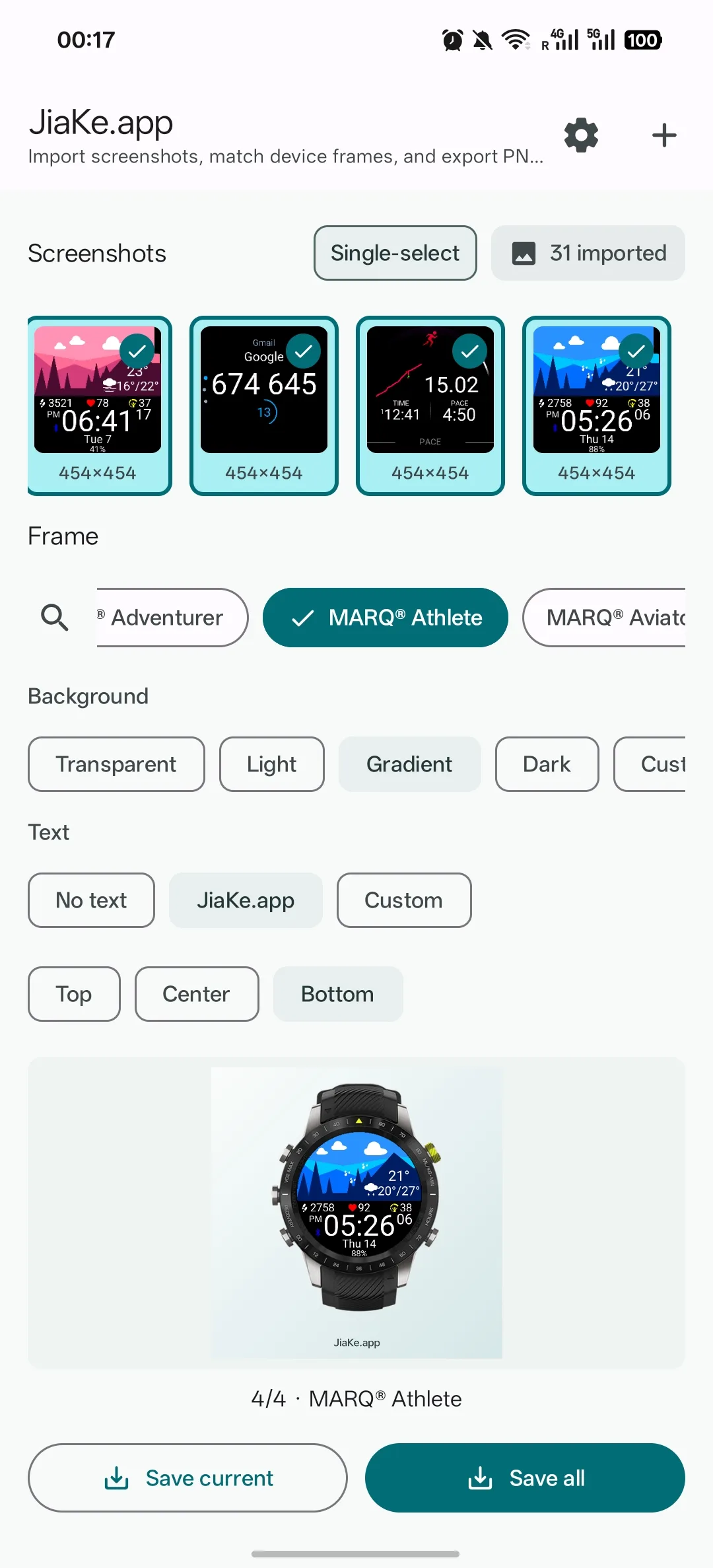
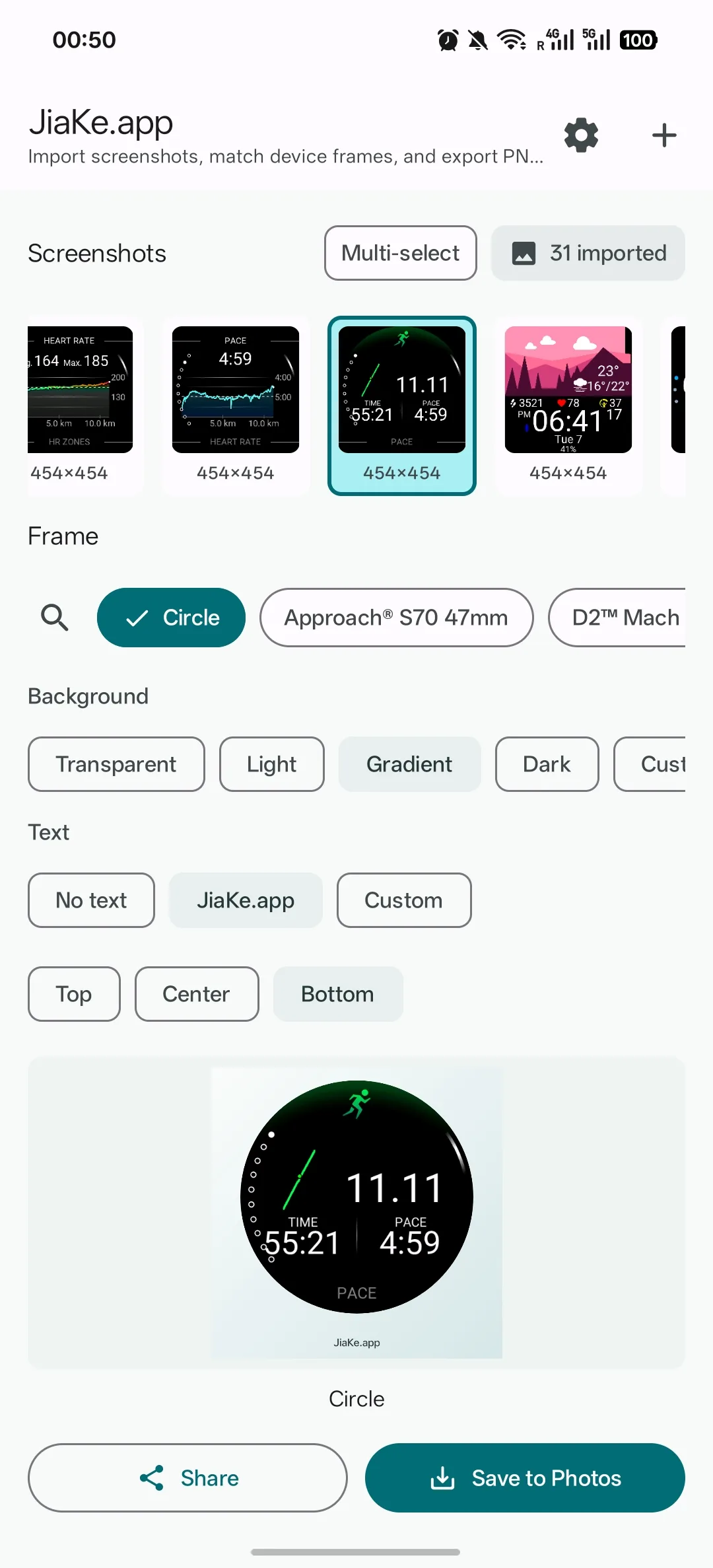
1. Capture the screenshot on the watch
Use the screenshot shortcut supported by your Garmin model. Some watches use a button combination, while others require assigning Screenshot to a hot key first. If you are unsure, check Garmin support for your model and confirm the screenshot shortcut before troubleshooting the export step.
After the capture, the watch should show a message that the screenshot was saved.
2. Connect the watch to your Android phone
Use a real data cable. If your phone has USB-C and your Garmin cable is USB-A, use a USB-C OTG adapter.
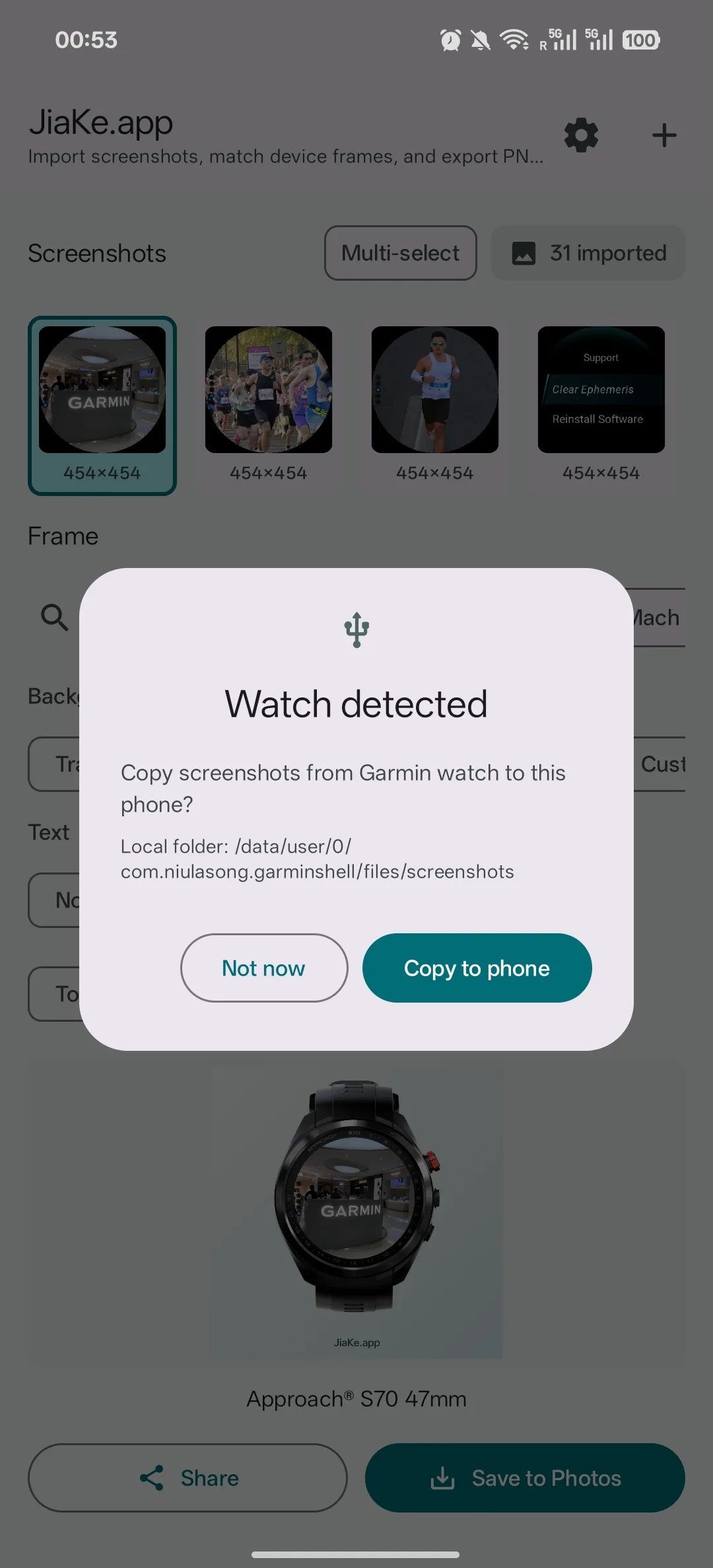
Unlock the phone. Android may show a USB permission prompt when the app detects the Garmin watch. Grant access so JiaKe.app can read the watch storage.
3. Open JiaKe.app and copy watch screenshots
In JiaKe.app, use the watch import flow. The app looks for likely Garmin MTP devices, then scans screenshot folders such as GARMIN/SCREENSHOT and GARMIN/SCRNSHOT.
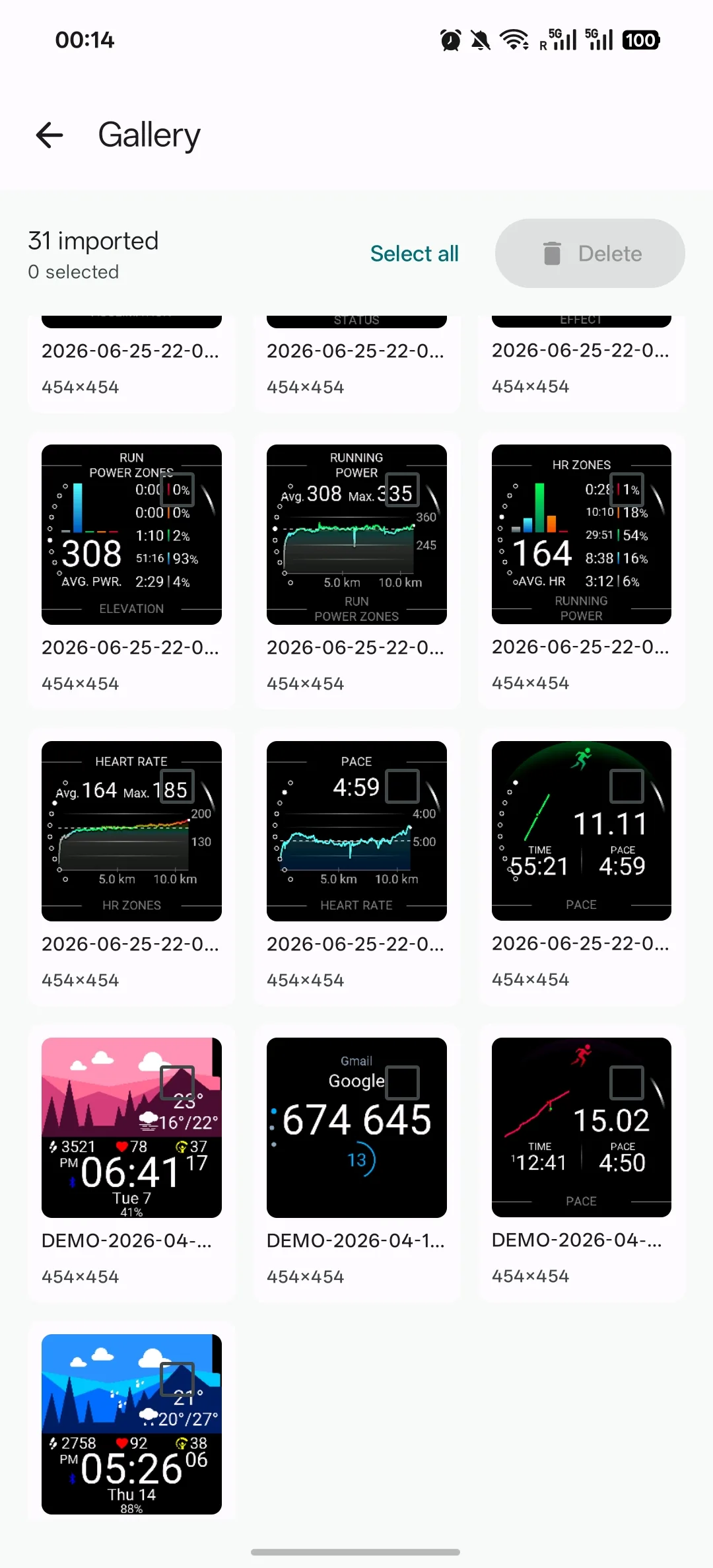
When screenshots are found, copy them to the phone. JiaKe.app keeps the imported screenshots in a local gallery, so you do not need to browse the watch folder again every time you want to frame or export the same capture.
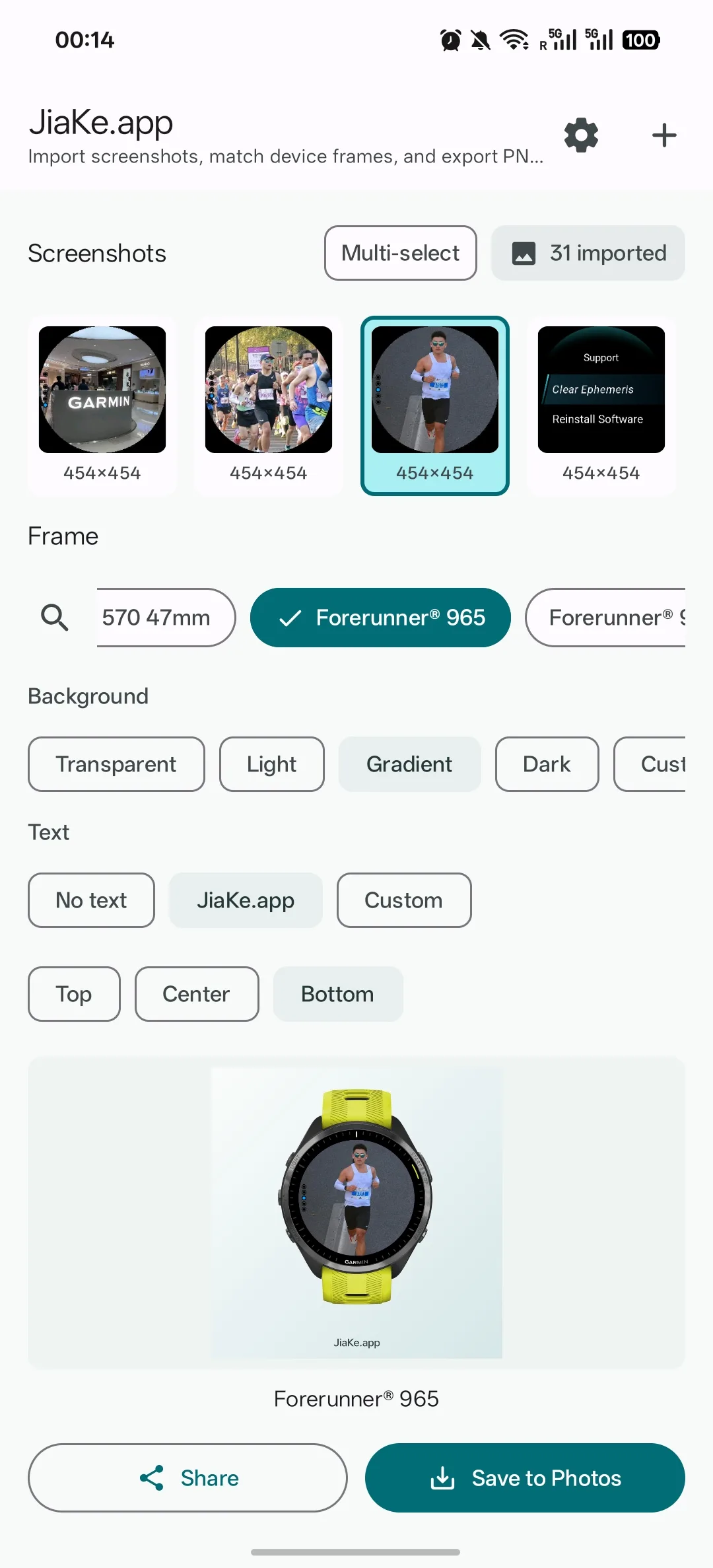
4. Choose a Garmin frame
Select the imported screenshot and choose the Garmin device frame that matches your watch or the closest screen shape. JiaKe.app supports round, square, and rectangular screen compositions, so the export is more useful than a tiny raw screen capture.
This is especially helpful for Connect IQ developers and watch face makers. A raw watch screenshot can be too small or plain for a product page. A framed export gives the viewer context while preserving the real screen content.
5. Export or save to Photos
Export the finished image as a PNG. You can save the current image, save multiple selected screenshots, or share the exported PNG through Android's share sheet.
For most public uses, PNG is the better final format because it preserves crisp UI edges, text, and watch face details. Keep the original BMP capture as the source file when you need an archive.
6. Optional: clear copied BMP files from the watch
After copying screenshots to your phone, you may want to remove old BMP files from the watch screenshot folder. JiaKe.app can help clear BMP screenshots from the watch storage after import. Use this only when you have confirmed the copied screenshots are already on your phone.
Method 2: Manual Android export without a screenshot app
You can also try a manual file-transfer workflow, but it depends on how your Android device handles USB storage and MTP devices.
- Connect the Garmin watch to the Android phone.
- Open a file manager that can browse attached USB or MTP devices.
- Open the Garmin watch storage.
- Look for
GARMIN/SCREENSHOTorGARMIN/SCRNSHOT. - Copy BMP, PNG, JPG, or JPEG screenshots to a local phone folder.
- Open or convert the copied files.
- Save the converted images to your gallery.
This works for occasional exports, but it has rough edges. Some file managers do not expose MTP devices clearly. BMP viewing can be inconsistent. You still need another tool if you want a device frame, a clean background, or a repeatable batch export.
That is the reason JiaKe.app focuses on the full screenshot workflow instead of acting like a generic Garmin file browser.
Android vs Mac: what changed
The Mac version of JiaKe.app was designed around the desktop production workflow. It helps Mac users avoid repeated Android File Transfer steps, local folder cleanup, design-tool setup, frame alignment, and export work.
The Android version solves a different problem. It is for users who already have the phone in hand and want to move from watch capture to shareable image without opening a computer.
The difference matters:
- Mac workflow: best for larger batches, product pages, release assets, and desktop publishing.
- Android workflow: best for quick capture, bug reports, field testing, social sharing, and phone-first creators.
- Both workflows: keep screenshots local and turn raw Garmin captures into practical PNG exports.
If you previously saw JiaKe.app as a Mac screenshot framing tool, the Android release expands the workflow to the phone. It is not only a port. It adds a phone-side Garmin screenshot import path.
Common problems and fixes
Android does not detect my Garmin watch
Try a different cable first. Use a cable that supports data transfer, not only charging. Also try reconnecting the watch while the phone is unlocked.
I granted USB access but no screenshots were found
Confirm that the screenshot was actually captured on the watch. Then check whether your device uses GARMIN/SCREENSHOT, GARMIN/SCRNSHOT, or another screenshot folder. JiaKe.app checks common Garmin screenshot folder names, but a model-specific firmware difference can still matter.
The screenshot is a BMP file
That is normal for many Garmin screenshots. BMP is fine as a raw source capture, but PNG is easier to share, upload, and place into documentation. Export a PNG for final use.
Garmin Connect does not show the screenshot
That is expected for many watch screenshot files. The screenshot is normally retrieved from the watch storage rather than from the Garmin Connect phone app.
The image is too small for a listing
Do not stretch the raw watch screen aggressively. Use a frame, padding, and a clean background around the real screenshot. This creates a larger asset while keeping the screen readable.
Best uses for Android screenshot export
An Android phone export is especially useful when speed matters:
- Sending a bug screenshot from a real watch during testing.
- Sharing a new watch face preview from the field.
- Preparing a quick support image for a user report.
- Capturing Edge, Forerunner, Venu, or Fenix screen states without opening a desktop app.
- Creating quick Connect IQ forum images.
- Saving a set of real screenshots to Photos before cleaning the watch storage.
For larger launch sets, you may still prefer the Mac version. For quick phone-side retrieval, the Android version closes a gap that Garmin users have been asking about for years: getting watch screenshots from the device to the phone.
FAQ
Can I export Garmin watch screenshots directly to Android?
Yes, if your Android phone can read the connected Garmin watch over USB and you use a data cable. JiaKe.app for Android is designed to copy watch screenshots to the phone and export PNG images from them.
Where are Garmin screenshots stored?
Check the watch storage for a Garmin screenshot folder such as GARMIN/SCREENSHOT or GARMIN/SCRNSHOT. The exact folder name can vary by device or firmware.
Are Garmin screenshots BMP files?
Many Garmin watch screenshots are BMP files. Treat the BMP as the source capture, then export PNG for sharing, documentation, and app listings.
Can Garmin Connect transfer screenshots to my phone gallery?
Garmin Connect usually does not expose raw watch screenshot files as phone photos. For saved watch screenshots, use USB or MTP access to copy the files from the watch storage.
Do I need a computer?
Not necessarily. With an Android phone that supports USB host mode, a data cable, and JiaKe.app, you can import and export Garmin screenshots from the phone.
Is JiaKe.app affiliated with Garmin?
No. JiaKe.app is an independent tool for Garmin screenshot workflows and is not affiliated with Garmin.