If you are searching for the best Garmin Android File Transfer alternative for Mac, the first question is what you actually need to do.
If you want to browse every folder on a Garmin device, a general MTP file transfer app may be the right tool. If you want to retrieve screenshot from Garmin watch storage, copy BMP files from GARMIN\ScreenShot, and turn those screenshots into polished images, a Garmin-specific screenshot workflow is more useful than a generic file browser.
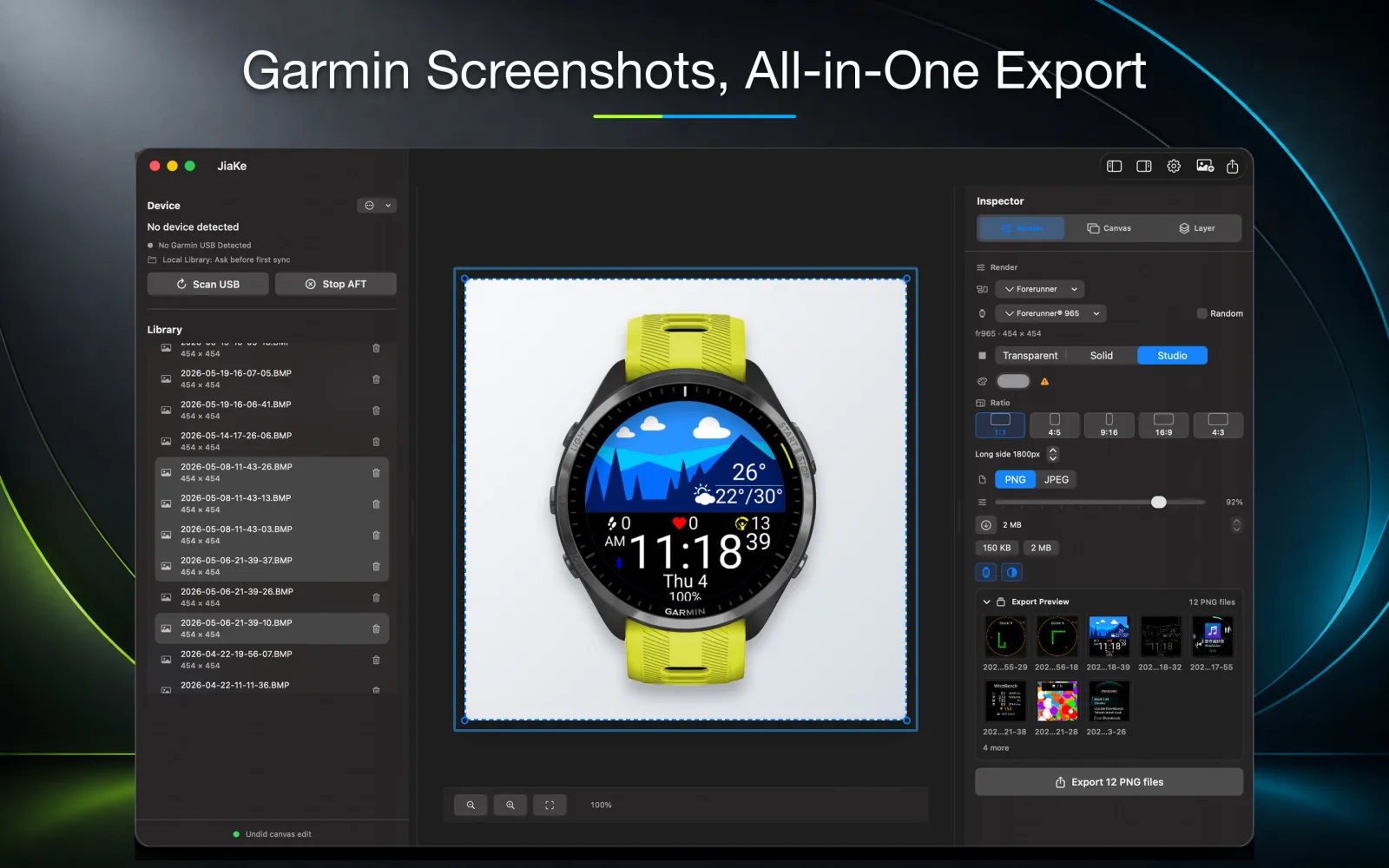
That is the difference this guide focuses on. Android File Transfer-style tools help you reach the file. JiaKe.app is designed to reduce the repeated work after that: finding screenshots, copying them locally, organizing them, placing them in watch frames, and exporting finished PNG or JPEG assets.
Quick answer
The best Garmin Android File Transfer alternative depends on your job:
| Job | Better option | Why |
|---|---|---|
| Browse all files on a Garmin device | A general MTP app | You need broad file access, not just screenshots |
| Update or manage a Garmin device | Garmin Express | It is built for device updates and management |
| Retrieve Garmin watch screenshots on Mac | JiaKe.app | It focuses on GARMIN\ScreenShot, BMP screenshots, local copy, framing, and export |
| Create Connect IQ listing images | JiaKe.app | It turns raw captures into repeatable product assets |
| Convert one BMP to PNG | Garmin BMP converter | A lightweight tool is enough for one-off conversion |
JiaKe.app is not a full replacement for every Android File Transfer use case. It is better framed as a Garmin screenshot automation tool for Mac. Use it when the goal is less friction, fewer repeated folder steps, and a calmer path from watch capture to publish-ready image.
Why Garmin users search for Android File Transfer
Many Garmin watches expose device storage over MTP. On Windows, connected devices often feel easier to browse from File Explorer. On macOS, the same Garmin watch may not appear like a normal Finder drive, so users search for Android File Transfer, OpenMTP, MacDroid, or another MTP browser.
That search behavior makes sense, but it hides two separate workflows:
- File transfer: open the Garmin storage and move files.
- Screenshot production: retrieve screenshots, convert BMP files, add device context, and export assets.
For the first workflow, a generic MTP app can be enough. For the second workflow, a generic file-transfer window still leaves you with the repetitive production work.
The manual Garmin screenshot workflow on Mac
A typical manual workflow looks like this:
- Take a screenshot on the Garmin watch.
- Connect the watch to the Mac with a USB cable.
- Open an Android File Transfer-style MTP app.
- Browse through Garmin folders.
- Find
GARMIN\ScreenShot. - Drag BMP files to a local folder.
- Open a converter or image editor.
- Convert BMP screenshots to PNG.
- Find or create a watch frame.
- Align the screenshot inside the frame.
- Export the final image.
That is fine once. It becomes annoying when you need a whole screenshot set for a Connect IQ app, data field, widget, watch face, release note, support article, or product page.
The real pain is not only file transfer. The real pain is remembering the same sequence every time and rebuilding the same export setup again.
What "best" means for Garmin screenshots
For Garmin screenshot work, the best tool is not necessarily the tool with the biggest file-browser feature list. The best tool is the one that removes the most repeated steps from your actual job.
For screenshot assets, that means:
- It understands that Garmin watch screenshots live in
GARMIN\ScreenShot. - It treats BMP files as source captures.
- It copies screenshots to a stable local library before processing.
- It keeps the original screenshot safe.
- It helps convert or export to PNG/JPEG.
- It supports watch frames and screen-shape-aware layouts.
- It can reuse a style across multiple screenshots.
- It reduces the need to open a separate design tool for every image.
This is where a Garmin-specific screenshot workflow starts to outperform a general Android File Transfer alternative.
Best options compared
| Option | Best for | Limitation |
|---|---|---|
| Android File Transfer-style app | Basic MTP browsing if it works on your Mac | Manual, generic, and not focused on Garmin screenshots |
| OpenMTP or MacDroid-style app | Broader file transfer and folder browsing | Still leaves conversion, framing, and export to other tools |
| Garmin Express | Device updates, setup, and management | Not a screenshot production workflow |
| Manual Finder-like copy flow | Occasional file backup | Unreliable across MTP devices and still repetitive |
| JiaKe.app | Garmin screenshot retrieval, local library, BMP handling, framing, and export | Not intended as a full generic Garmin file manager |
The honest answer is that no single tool should be called best for every Garmin file-transfer scenario. But for a Mac user trying to retrieve screenshots from a Garmin watch and turn them into finished assets, JiaKe.app is the more focused answer.
How JiaKe.app reduces friction
JiaKe.app is built around the part of Garmin file transfer that creators repeat most often: retrieving watch screenshots and making them useful.
Instead of treating every connected Garmin file as equal, the workflow focuses on screenshot assets:
- Detect a connected Garmin MTP device when storage is accessible.
- Help copy watch screenshots from
GARMIN\ScreenShotinto a fixed local folder. - Keep the workflow local on the Mac.
- Warn when Android File Transfer is occupying the MTP connection.
- Use a local screenshot library so you do not need to browse the device every time.
- Import Garmin BMP screenshots from a watch or local folder.
- Add selected screenshots to device-frame layers.
- Export PNG/JPEG assets for stores, websites, documentation, and launch posts.
- Batch export multiple screenshots with the current style.
The goal is not to make you think about MTP more. The goal is to let you get back to the image you actually need to publish.
Retrieve screenshot from Garmin watch: lower-friction workflow
Use this workflow when your search intent is "retrieve screenshot from Garmin watch" or "transfer Garmin screenshots to Mac."
- Take the screenshot on the Garmin watch.
- Connect the watch to your Mac with USB.
- Let the Mac detect the Garmin device.
- If another MTP app is running, close it so the connection is not blocked.
- Copy screenshots from
GARMIN\ScreenShotinto a local screenshot library. - Review the imported BMP screenshots locally.
- Choose a Garmin device frame or export style.
- Export PNG/JPEG assets.
The important improvement is that the screenshot source and the export workflow stay close together. You are not constantly switching between file transfer, converter, design tool, and export folder.
Why a local screenshot library matters
Copying Garmin screenshots to a local folder is not just a convenience. It changes the reliability of the whole workflow.
Working from the watch storage directly can be fragile. MTP can be slow to respond. The device can disconnect. Another app can occupy the connection. A cable can be bumped. A file operation can fail.
A local screenshot library gives you a stable source:
- You can reopen the app without reconnecting the watch.
- You can retry exports without reading MTP again.
- You can keep original BMP captures unchanged.
- You can organize screenshots by release or product.
- You can batch export from local files.
For anyone preparing Connect IQ screenshots, a local library is the difference between a one-time copy and a repeatable publishing workflow.
Android File Transfer Garmin not working
If Android File Transfer or another MTP app does not work with a Garmin watch, check the basics first:
- Try a USB cable that supports data, not just charging.
- Disconnect and reconnect the watch.
- Restart the file-transfer app.
- Close Garmin Express before using another MTP browser.
- Close Android File Transfer before using another app that needs the MTP connection.
- Wait a moment; MTP storage can take time to become readable.
- Copy files locally before editing or converting them.
If the only file you need is a screenshot, avoid turning the problem into a full device-browsing session. Capture the screen, retrieve the screenshot from GARMIN\ScreenShot, copy it locally, and finish the asset from there.
When a generic MTP app is still the right tool
A focused Garmin screenshot workflow is not the right answer for every task.
Use a general MTP app when you need to:
- Browse map files.
- Copy activity files manually.
- Back up broad device folders.
- Inspect non-screenshot files.
- Move files that are unrelated to screenshot production.
Use JiaKe.app when you need to:
- Retrieve Garmin watch screenshots with less manual folder work.
- Convert Garmin BMP screenshots into practical exports.
- Add Garmin watch frames.
- Prepare Connect IQ app screenshots.
- Create watch-face launch images.
- Batch export a consistent screenshot set.
This positioning matters. JiaKe.app is stronger when it solves one valuable Garmin workflow deeply instead of pretending to be every file-transfer tool at once.
Best workflow for Connect IQ creators
For Connect IQ developers, watch-face designers, and Garmin app makers, the screenshot workflow is usually part of a release process.
A good release workflow looks like this:
- Capture real screens on the target watch.
- Retrieve screenshots from the Garmin watch.
- Keep BMP files as original sources.
- Build framed exports for the Connect IQ Store.
- Reuse the same canvas style for every screenshot.
- Export social images, docs images, and website images from the same source set.
That workflow is where automation has leverage. The more screenshots you prepare, the more valuable it becomes to avoid manual folder browsing, repeated conversion, repeated frame alignment, and repeated export setup.
Internal links for the next step
After you retrieve the screenshot, use the right next step:
- Learn the capture process in the Garmin screen capture guide.
- Find the storage path in the Garmin screenshot folder guide.
- Convert one file with the Garmin BMP to PNG converter.
- Create a framed image with the Garmin screenshot frame tool.
- Try the browser-based JiaKe Web Console.
- Use the full local workflow with the Mac app.
FAQ
What is the best Garmin Android File Transfer alternative for Mac?
For broad file browsing, use a general MTP file-transfer app. For Garmin screenshots, JiaKe.app is the better focused workflow because it helps retrieve BMP screenshots from GARMIN\ScreenShot, copy them locally, frame them, and export finished images.
How do I retrieve screenshot from Garmin watch?
Take the screenshot on the watch, connect the watch to your Mac, open the device storage, and check GARMIN\ScreenShot. Copy the BMP files locally before converting or framing them.
Is Garmin an Android device?
No. Garmin watches are not Android phones. Mac users search for Android File Transfer because many Garmin devices expose files through MTP, the same kind of transfer workflow often associated with Android devices.
What does "best Garmin Android File Transfer for Android" mean?
That phrase is usually a mixed search query. Most users mean "the best Android File Transfer-style tool for a Garmin device on Mac." Android File Transfer is a Mac-side utility, not an app you install on the Garmin watch.
Where are Garmin watch screenshots stored?
For Garmin watches, check GARMIN\ScreenShot on the watch storage after connecting the device to your computer.
Is JiaKe.app a full Android File Transfer replacement?
No. JiaKe.app is not meant to replace a full generic MTP browser. It is a Garmin screenshot workflow tool for retrieving, organizing, framing, converting, and exporting screenshot assets.
Why not just use Garmin Express?
Garmin Express is useful for setup, updates, and device management. It is not designed to be a screenshot production workflow for BMP capture, device framing, and PNG/JPEG export.
Can JiaKe.app reduce manual screenshot work?
Yes. JiaKe.app focuses on local screenshot copy, local library use, Garmin BMP import, device-frame composition, reusable styles, and batch export, so each release does not require the same manual file-transfer and design steps again.