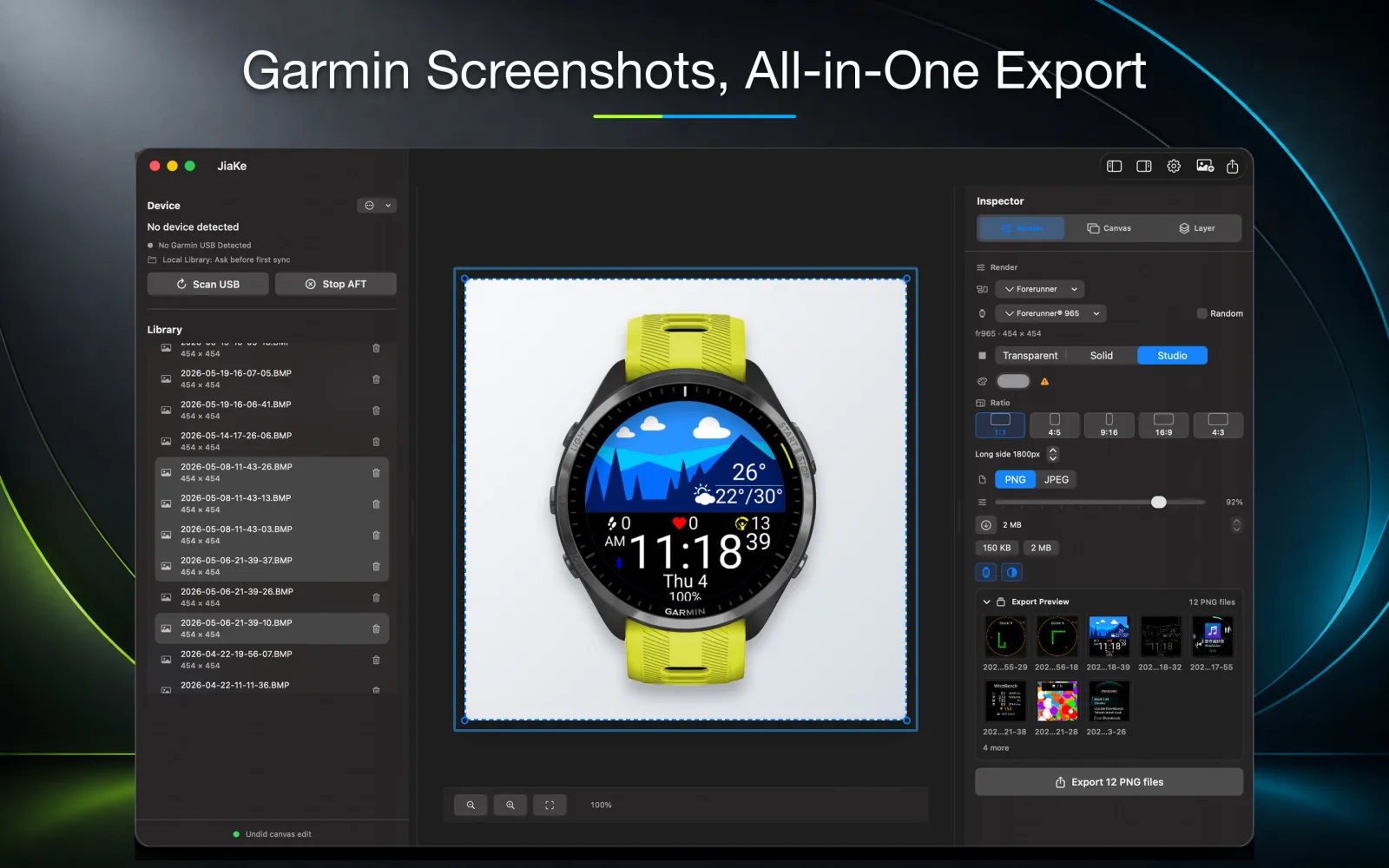
Garmin screen capture is useful when you need to show exactly what appears on a watch, Edge cycling computer, outdoor handheld, or automotive device. The catch is that the screenshot workflow changes by model. Some Garmin devices require you to enable screen capture first, some use a hotkey, and some save the image in a device-specific folder.
This guide explains the practical workflow: enable Garmin screen capture, take the screenshot, find the saved file, copy it to your computer, and turn the raw image into a PNG or framed asset you can actually publish.
Quick answer
Taking a screenshot on a Garmin device depends on your specific model. Most devices require you to enable the feature in settings first.
| Garmin device type | Enable screen capture | Capture action | Where to look after USB connection |
|---|---|---|---|
| Garmin watches, including Forerunner, fēnix, Venu, and vívoactive | Settings, System, Controls, Hotkeys, or Shortcut settings depending on model | Use the assigned shortcut or button combination | GARMIN\ScreenShot |
| Garmin Edge cycling computers | Menu, System, Display, Screen Capture | Press and release the power button on supported models | Look for the screen capture folder on the Edge storage |
| Garmin outdoor handhelds | Settings, Display, System, or Capture Screen depending on model | Use the device's screenshot command | Look for the screenshot folder on the Garmin storage |
| Garmin automotive and powersport devices | Settings, Display, or Screenshot setting depending on model | Use the on-screen camera icon or device-specific button action | Look under internal storage or Pictures-style screenshot folders |
If your device does not match these steps exactly, search the Garmin Support Center for your model name and "screenshot" or "screen capture." Garmin button names, menu labels, and storage folders vary across product families.
What Garmin screen capture actually creates
A Garmin screen capture is usually a device-generated image file, not a screenshot from Garmin Connect on your phone. On Garmin watches, the saved file is commonly a BMP screenshot stored on the watch itself. You normally retrieve it by connecting the watch to a computer over USB or MTP.
That distinction matters for SEO, support, and publishing workflows:
- An iPhone screenshot of Garmin Connect shows the phone app.
- A Garmin watch screen capture shows the actual watch screen.
- A Garmin Edge screen capture shows the cycling computer display.
- A Garmin automotive screenshot shows the navigation device display.
For Connect IQ developers, watch-face designers, app makers, and support writers, the real device capture is usually the more useful source.
Garmin watches: Forerunner, fēnix, Venu, and vívoactive
Garmin watch screen capture is the most common workflow for Connect IQ screenshots, watch-face launch images, documentation, and app support pages.
Enable Garmin screen capture on a watch
The exact setting name depends on the watch, but the workflow usually looks like this:
- Open the watch settings.
- Go to System.
- Open Hotkeys, Controls, Shortcut, or a similar control menu.
- Assign the screenshot function to a button shortcut or control.
- Save the setting and return to the screen you want to capture.
Some watches use a button combination such as holding Back and Light. Others require a configured hotkey or shortcut first. If the shortcut does nothing, check the model-specific manual before assuming the feature is missing.
Capture the watch screen
After the screenshot shortcut is enabled, open the app, data field, widget, activity page, watch face, or system screen you want to capture. Then use the assigned button combination. On many watches, the device gives a small confirmation when the screenshot is saved.
For clean product assets, capture the screen in the final state you want to show. Check text truncation, icon contrast, data-field values, and watch-face complications before you copy the file.
Find Garmin watch screenshots
Connect the watch to your computer with a USB cable and open the watch storage. For Garmin watch screenshots, check:
GARMIN\ScreenShot
Copy the files to your computer before editing, converting, or uploading them. The raw screenshot is often a BMP file, so you may need to convert it to PNG before using it on a website, store listing, social post, or support page.
If you need a deeper folder-focused guide, use the Garmin screenshot folder guide.
Garmin Edge screen capture
Garmin Edge devices use a different workflow from watches. On supported Edge cycling computers, screen capture is usually enabled from the display settings.
The practical flow is:
- Open Menu.
- Go to System.
- Open Display.
- Turn Screen Capture on.
- Return to the page you want to capture.
- Press and release the power button.
On supported models, a beep or visual confirmation can indicate that the Edge screen capture was saved. After that, connect the Edge device to a computer and open the device storage. Look for the screen capture folder on the Edge storage, then copy the BMP files locally.
The Edge workflow is useful for cycling data pages, course screens, workout steps, map views, and device setup documentation.
Garmin outdoor handheld screen capture
Outdoor handhelds, dog tracking handhelds, GPSMAP-style devices, and related Garmin products may use screen capture settings under Display, System, or a model-specific screenshot option. The capture action can also vary by device.
The general workflow is:
- Enable the screenshot or screen capture option in device settings.
- Navigate to the screen you want to document.
- Use the device-specific screenshot command.
- Connect the device to a computer.
- Open the Garmin storage and copy the saved screenshot files.
For outdoor devices, it is especially important to confirm the exact model instructions. The screen capture feature may be used for maps, satellite communication screens, routes, track views, hunt screens, or troubleshooting evidence.
Garmin automotive and powersport screen capture
Automotive, RV, motorcycle, powersport, and Tread-style Garmin devices often expose screenshot capture through a display setting, a camera icon, or a device-specific button action. The saved image is normally retrieved by connecting the device to a computer and opening its internal storage.
Use this workflow:
- Enable the screenshot or screen capture setting.
- Open the navigation, map, route, media, or settings screen you need.
- Use the on-screen camera icon or the model-specific capture action.
- Connect the device to a computer.
- Open internal storage and look for the saved screenshots.
This workflow is different from Garmin watch screen capture, so do not assume the watch path applies to every Garmin product line.
Why the folder name can be confusing
Garmin uses different product families, operating systems, storage layouts, and support documents. That is why people search for terms like "Garmin screen capture folder," "Garmin screenshot folder," and "where are Garmin screenshots saved" and still get mixed answers.
For Garmin watches, this site standardizes the watch screenshot path as:
GARMIN\ScreenShot
For Edge, outdoor, automotive, and other Garmin devices, the folder name can vary by product family. The safest approach is to connect the device, open its Garmin or internal storage area, and look for the screenshot-related folder created by that device.
What to do after Garmin screen capture
The raw screen capture is usually not the final publishing asset. It may be small, square, round, rectangular, or saved as BMP. Before publishing it, decide what the image is for.
For support documentation, a plain converted PNG may be enough. For a Connect IQ Store listing, product page, launch post, or website hero image, a framed export usually works better because viewers can immediately understand which device the screen belongs to.
A practical workflow is:
- Capture the screen on the Garmin device.
- Copy the screenshot to your computer.
- Keep the original BMP file unchanged.
- Convert the BMP to PNG if you need a simple image.
- Add a watch frame if you need a polished product asset.
- Export the final image at the right size for your publishing channel.
For quick conversion, use the Garmin BMP to PNG converter. For product images, use the Garmin screenshot frame tool or the JiaKe Web Console.
Garmin screen capture for Connect IQ developers
If you build Connect IQ apps, data fields, widgets, or watch faces, Garmin screen capture is one of the fastest ways to produce realistic screenshots. It shows the actual UI running on the device instead of a simulated screen.
Before capturing, prepare the screen:
- Use readable demo data.
- Avoid temporary debug labels.
- Check dark mode and light mode if your app supports both.
- Make sure fields are not clipped.
- Capture several states, such as empty, active, completed, and error screens.
- Keep the original screenshot files for future releases.
After capture, use a repeatable export style. Consistent framing, padding, background, and output size make a screenshot set look intentional instead of patched together.
Troubleshooting Garmin screen capture
I enabled the shortcut, but no screenshot appears
Check the exact model instructions. Some watches require a hotkey assignment, some require a specific button hold, and some features only appear in certain modes or firmware versions. Try capturing a simple watch face first, then check GARMIN\ScreenShot after connecting the watch.
My Mac does not show the Garmin watch in Finder
Many Garmin watches use MTP, so the watch may not appear like a normal Finder drive. Use the transfer method supported by your device, then copy the screenshots locally before processing them.
The file is BMP instead of PNG
That is normal for many Garmin screenshots. Treat BMP as the source capture. Convert it to PNG for sharing, uploading, or placing inside a device frame.
The screenshot looks too small
The screenshot uses the device screen resolution. Do not upscale it aggressively by itself. Instead, build a larger canvas around it with a watch frame, padding, background, and clear export dimensions.
I only need a screenshot from Garmin Connect
Use your phone or computer's normal screenshot tool. That is different from Garmin screen capture on the device itself.
FAQ
What is Garmin screen capture?
Garmin screen capture is the device feature that saves an image of the current screen. On watches, it is commonly used to capture app screens, watch faces, activity pages, and Connect IQ interfaces.
How do I enable Garmin screen capture on a watch?
Open the watch settings, go to System, then look for Hotkeys, Controls, Shortcut, or a similar menu. Assign screenshot capture to a supported button shortcut, then use that shortcut on the screen you want to capture.
Where are Garmin watch screenshots saved?
For Garmin watches, check GARMIN\ScreenShot after connecting the watch to your computer. Copy the screenshot files locally before converting or editing them.
How do I capture a screen on Garmin Edge?
On supported Edge devices, turn on Screen Capture under Menu, System, Display. Then press and release the power button to save a screen capture.
Are Garmin screen captures BMP files?
Many Garmin device screenshots are saved as BMP files. BMP is useful as a raw source capture, but PNG is usually easier for websites, store listings, documentation, and sharing.
Can I use Garmin screen capture images in a product listing?
Yes, but a raw screenshot often needs context. For a listing or launch post, place the screenshot inside a device frame and export a polished PNG or JPEG asset.
Does JiaKe.app take the screenshot on the watch?
No. You take the screenshot on the Garmin device first. JiaKe.app helps with the next step: importing, framing, previewing, and exporting Garmin screenshot assets.
Should I check Garmin Support for my exact model?
Yes. Garmin screen capture menus, button shortcuts, and storage folders can vary by model. Use the model-specific Garmin Support Center page when the general workflow does not match your device.