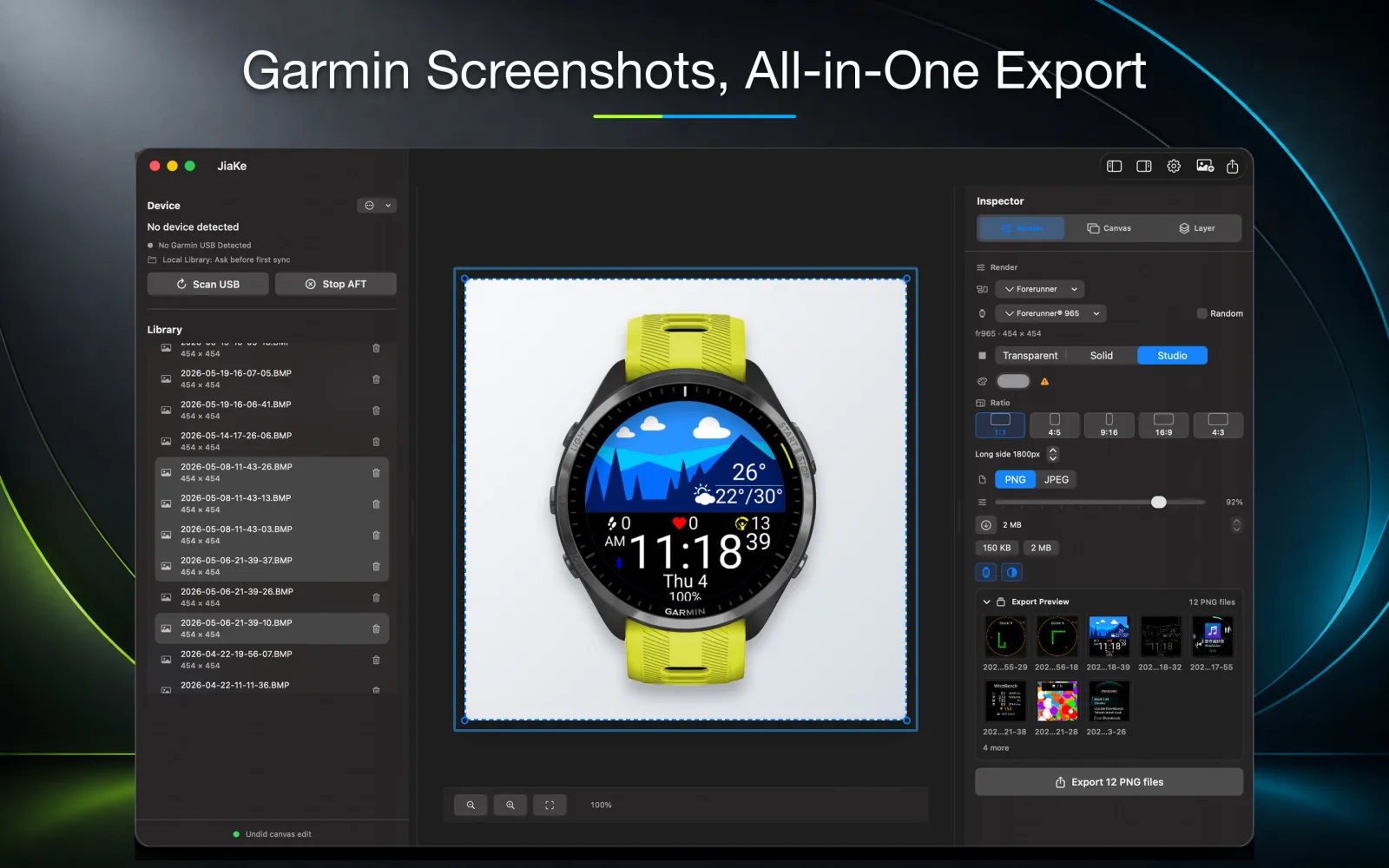
Windows users can convert Garmin BMP screenshots to PNG or JPG with a browser-based converter or a desktop image tool.
For JiaKe.app, this page has a second purpose: it helps measure whether a Windows version is worth building after the web converter and Mac workflow prove demand.
What Windows users usually need
The common Windows workflow is simple:
- Copy BMP screenshots from the Garmin device.
- Convert BMP to PNG for clean screenshots.
- Convert BMP to JPG only when smaller files are needed.
- Prepare framed images for docs, listings, or product pages.
The fourth step is where a dedicated desktop app can save time.
Convert BMP to PNG on Windows
PNG is the safer output for Garmin screenshots because it preserves small UI details. Use it for Connect IQ Store assets, documentation, watch face previews, and product pages.
When the JiaKe.app web converter is added, this same page cluster will point Windows users to the browser tool first.
Convert BMP to JPG on Windows
JPG is useful for email, quick sharing, or smaller web images. It can add artifacts around small text and icons, so it is not the best default for Garmin UI screenshots.
If the screenshot is meant to look polished, convert to PNG first.
Why a Windows app is not the first step
The current priority is:
- Build SEO pages that capture the demand.
- Add the web converter so any user can convert files.
- Measure Windows interest through Search Console, GA4 events, and user requests.
- Build a Windows app only if the data supports it.
This avoids building a platform-specific app before the search demand is proven.
What to watch
Good Windows demand signals would include:
- impressions for
convert Garmin BMP on Windows - clicks from Windows user agents
- repeated converter usage from Windows
- requests for framed Garmin screenshot exports on Windows
- searches for
BMP to PNG WindowsandBMP to JPG Windows
If those signals are strong, a Windows version becomes a rational next product step.