How to screenshot on Garmin watch
Start with the capture step.
Garmin watch screenshot
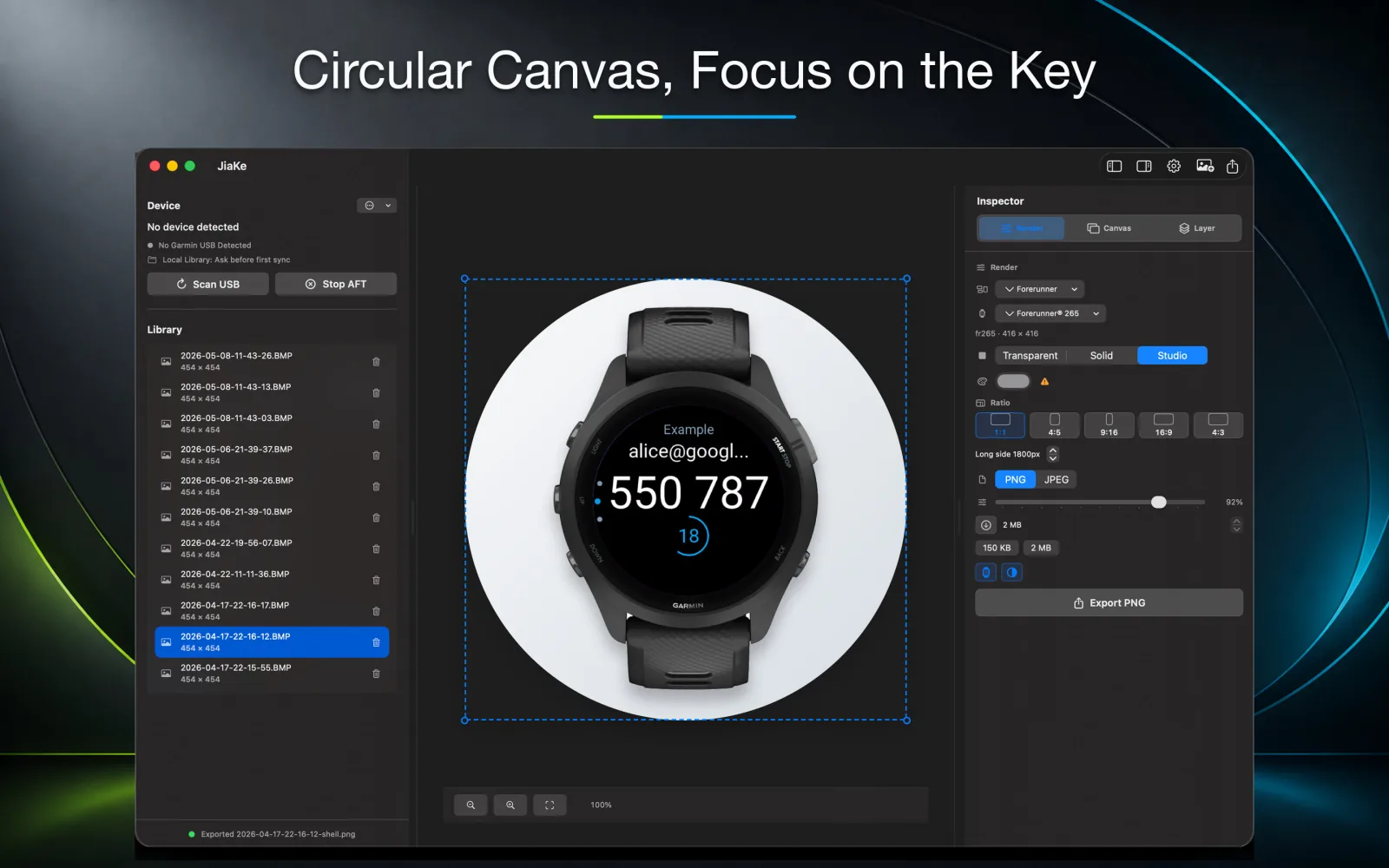
Capture Garmin watch screenshots, copy the BMP files, convert them to PNG, and create framed assets for Connect IQ apps, watch faces, docs, and product pages.
Watch-specific intent
A Garmin watch screenshot often contains dense data fields, icons, lap values, complications, or a watch face layout. Those details must remain readable after export.
That is why PNG is usually the right output and why a controlled frame layout matters. A good framed screenshot shows the device context without shrinking the real screen too far.
Connect IQ use cases
The same real screenshot can support a Connect IQ Store screen image, a product page section, a support article, and a launch post if the export workflow is planned.
JiaKe.app keeps that workflow repeatable: one source screenshot, one frame system, and multiple export presets when the same screen needs different publishing formats.
Workflow
The goal is not only to answer the search query. The goal is to move from a Garmin screenshot or BMP source file into a reusable asset that can support a real product release.
Related guides
Use these guides when you need to find Garmin screenshots, convert BMP files, or turn a raw capture into a framed image for publishing.
Start with the capture step.
Plan the full app release image set.
Create launch-ready watch face images.
FAQ
Use PNG for most publishing work because watch UI text and icons stay sharper than they do in JPG.
Yes. JiaKe.app applies Garmin device frames and exports framed PNG images from real watch screenshots.
No. The workflow also fits Connect IQ apps, data fields, widgets, and documentation screenshots.
JiaKe.app
Use JiaKe.app when a raw Garmin screenshot needs frames, presets, preview, batch export, and PNG output for Connect IQ listings, docs, product pages, and launch posts.