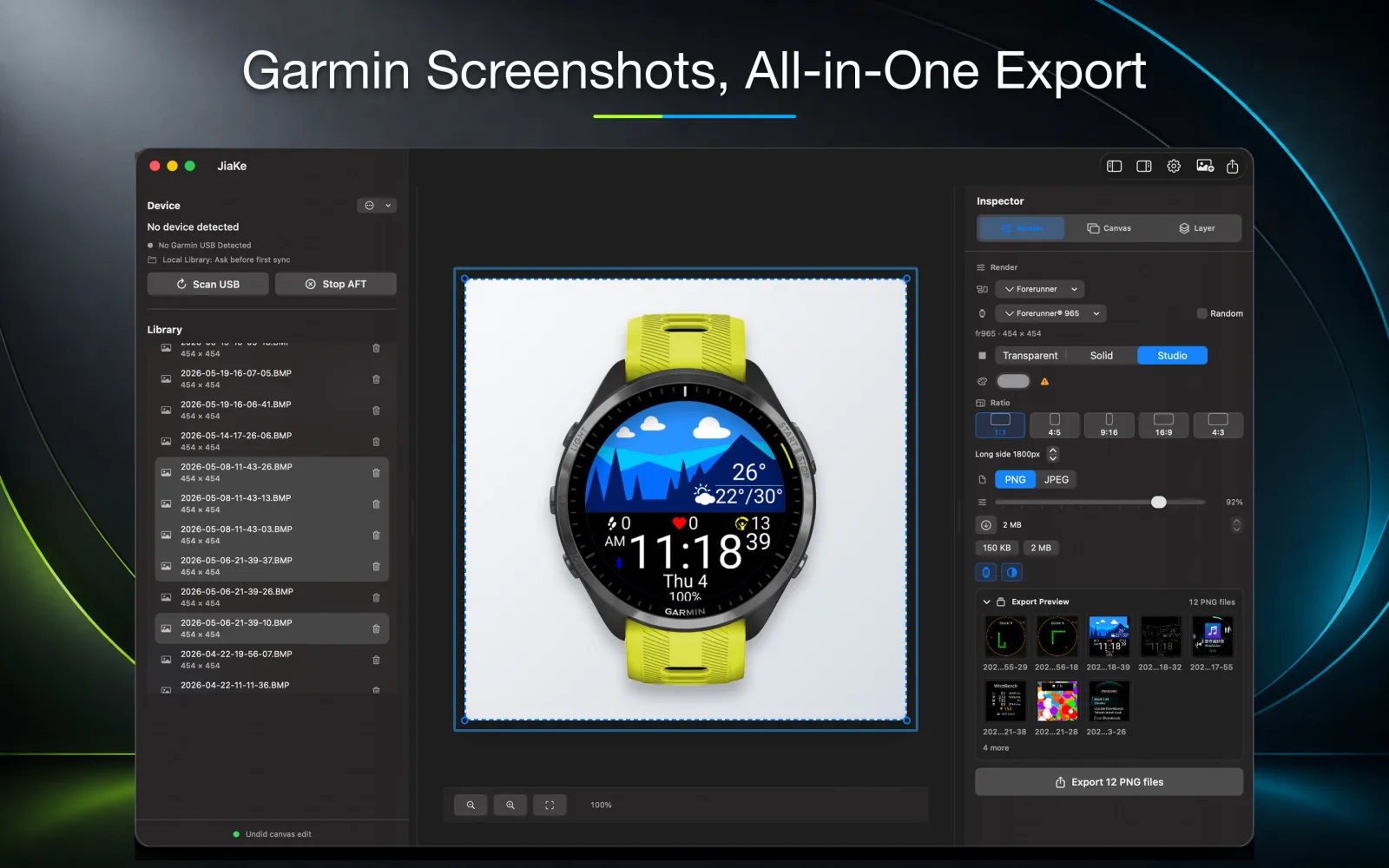
A raw Garmin screenshot is useful for debugging, but it rarely looks ready for a product page. The image usually needs context: a device frame, a clean background, consistent spacing, and an export size that works across a store listing, website, and launch post.
The slow part is not only taking the screenshot. The real friction starts after the BMP file is on your Mac: finding the file, moving it into a design tool, looking for the right frame, cutting the screen shape, aligning layers, and exporting every final image by hand.
This is where a dedicated Garmin Watch Screenshot Mockup Generator helps. Instead of rebuilding the same frame in a design tool for every release, you keep the transfer, preview, framing, presets, and export steps in one repeatable workflow.
The manual path has more friction than it first appears
A traditional Garmin screenshot workflow usually starts with a USB cable. You connect the watch to the computer, open Android File Transfer, drill through folders until you reach GARMIN/SCRNSHOT, select the BMP captures, and drag them into a local folder.
That is only the first stage. After export, the screenshots still need to become usable product images. You drag them into Figma, Sketch, Photoshop, or another design tool, search for a suitable device frame, adapt that frame file, cut the screenshot into a round or square screen shape, place it under the correct layer, align it, and then export the finished asset.
- USB connection and file transfer happen before any design work begins.
- The screenshot folder is easy to forget because it sits under GARMIN/SCRNSHOT.
- The design-tool stage repeats for every screen and every release size.
- Small alignment, cropping, and layer-order mistakes are common when the work is manual.
Use real screenshots, then remove the repeated handling
Use the actual screen from the Garmin device whenever possible. Real captures preserve tiny layout details that are easy to miss in recreated mockups: status icons, font weight, edge spacing, contrast, and how your data field or watch face actually sits on the device.
The better workflow is not to redraw those screens. It is to keep the real BMP captures, then remove the repeated handling around import, framing, cropping, alignment, style selection, and PNG export.
- Keep the screenshot unmodified until it is inside the frame.
- Use the same frame style across all screenshots in one release.
- Export consistent PNG sizes for store pages, documentation, and social posts.
- Avoid rebuilding the same frame setup for each new screenshot.
The three-step JiaKe workflow
JiaKe focuses on the Garmin-specific part of the workflow. First, connect the watch to your Mac with the cable. Second, JiaKe copies the watch screenshots into a local directory automatically. Third, select a screenshot, place it in the watch frame you want, choose from preset styles, and export the final image.
Compared with the manual path, the steps that disappear are the expensive ones: hunting through folders, dragging BMP files around, searching for frame assets, cutting screen shapes, adjusting layer order, aligning the screenshot by eye, and rebuilding export layouts.
- Step 1: plug the Garmin watch into the computer.
- Step 2: let the app copy screenshots from the watch to a local folder.
- Step 3: choose the image, frame, preset style, and export.
Why the time saving matters
Saving a few minutes on one image may sound small until you prepare a whole release. A Connect IQ app listing, a website section, a support article, and a launch post can easily require many versions of the same screenshot.
If every image avoids manual frame setup, crop work, alignment, layer ordering, and repeated export checks, the saving can grow from minutes per image to tens of minutes across one asset set. Time is a real production cost, and automating this workflow reduces that cost every time you publish.
Export checklist
Before publishing, check the image at the size where people will actually see it. A screenshot that looks good at full desktop width may be too dense inside a mobile app store listing or social preview.
Use the checklist below for each exported mockup.
- The screenshot content is readable at thumbnail size.
- The device frame does not crop important screen content.
- The background supports the product instead of competing with it.
- The export file name clearly describes the screen or feature.
- The final PNG is ready for the store, documentation, or launch post.
FAQ
What is JiaKe?
JiaKe is a macOS app that turns raw Garmin watch screenshots into framed PNG images for product pages, Connect IQ listings, documentation, and launch posts.
Do I need Photoshop or Figma for Garmin screenshot mockups?
A design tool can work for one-off images, but a dedicated workflow is faster when you repeatedly frame Garmin screenshots and export the same layout.
Can I use JiaKe for watch faces and Connect IQ apps?
Yes. JiaKe is designed for Garmin screenshots from apps, data fields, widgets, and watch faces.