Connect IQ screenshots have two jobs. They need to show the real interface, and they need to help someone understand the product quickly. A raw watch capture usually handles the first job. A release-ready image handles both.
The workflow below is designed for Garmin developers who want a repeatable path from watch capture to framed image without turning every release into a manual design project.
That matters because a release rarely needs just one image. App listings, docs, support pages, and social posts often need several framed exports, and each manual screenshot can cost minutes of file transfer, frame setup, cropping, layer ordering, and export work.
Capture the feature, not just the screen
Before exporting anything, decide what each screenshot should prove. One image might explain the main dashboard. Another might show a settings screen, a data field during activity, or a watch face layout in a realistic state.
This keeps the screenshot set focused. Users should be able to scan the images and understand what the app does before reading a long description.
- Show the most recognizable screen first.
- Use realistic data so the interface feels alive.
- Avoid duplicate screenshots that show the same idea.
- Capture edge cases only when they help explain the product.
Understand the full manual path
The old path usually has three stages. First, connect the Garmin watch over USB, open Android File Transfer, find the GARMIN/SCRNSHOT folder, and drag the BMP files to the Mac. Second, import those files into Figma, Sketch, Photoshop, or another design tool. Third, find the device frame, prepare it, crop the screenshot into the screen shape, place it under the right layer, align it, and export.
None of those steps is difficult by itself. The problem is repetition. Every new screenshot repeats the same transfers, frame decisions, crops, layer checks, and export settings.
- Export: cable, Android File Transfer, GARMIN/SCRNSHOT, local copy.
- Process: design tool, frame asset, screen crop, layer order, alignment.
- Publish: export the final PNG for the listing, docs, product page, or launch post.
Prepare screenshots before the final publishing step
Garmin's developer publishing flow includes app details and screen shots after the app package is validated. That means screenshots should be ready before you reach the final store-listing step.
Treat screenshots as release assets, not as a last-minute attachment. If you prepare them early, they can also be reused in documentation, support pages, newsletters, and social posts.
Make the set visually consistent
A consistent screenshot set looks more credible. Use the same frame style, background, and export dimensions. If one image has a large frame and another has a tiny frame, the set feels accidental even when each screenshot is technically correct.
For Connect IQ apps, consistency is especially useful across app types. A device app, data field, widget, and watch face can all share one visual system.
Use JiaKe for the framing and export step
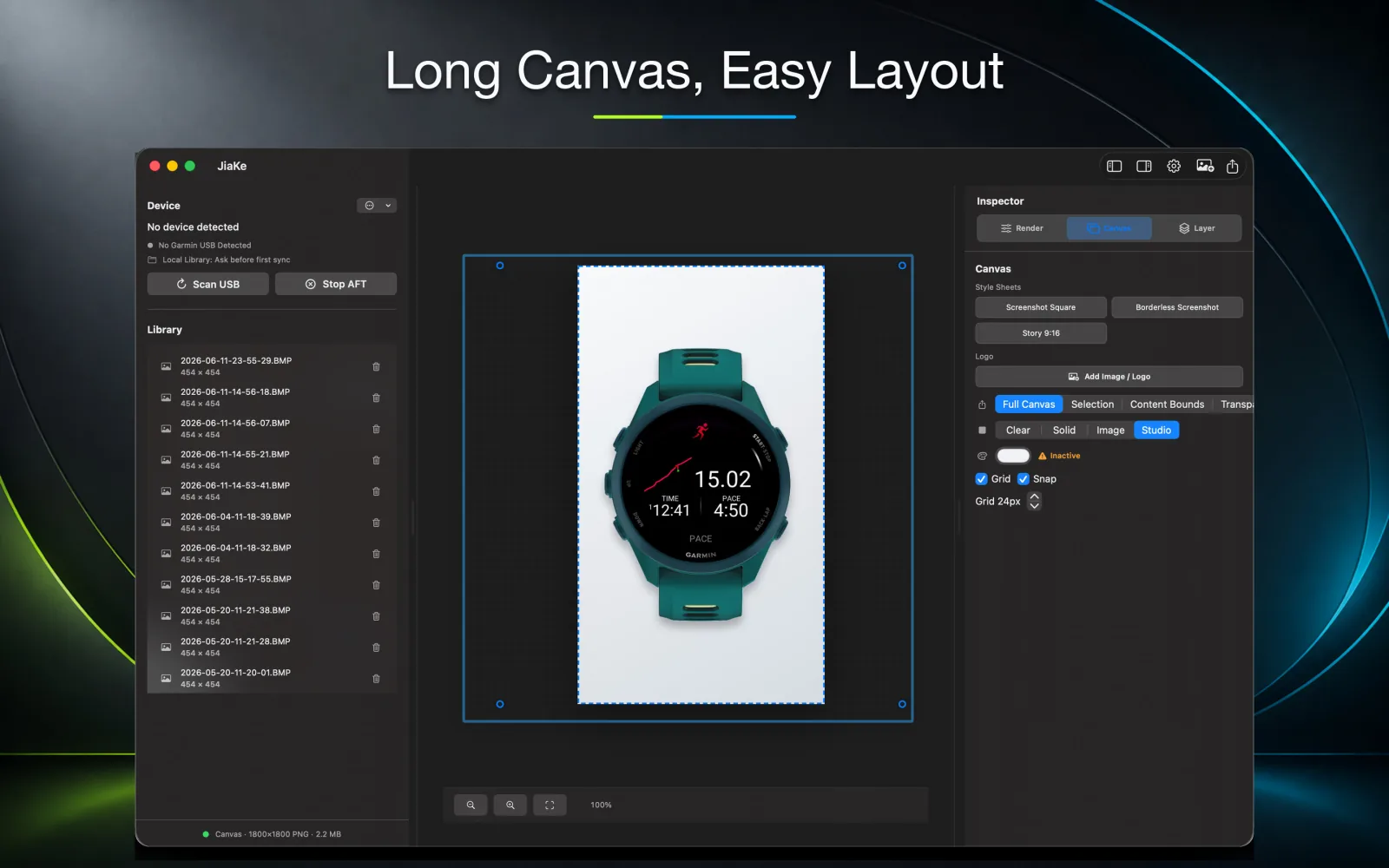
JiaKe is built for the part of the workflow that repeats. Connect the watch to the Mac, let the app copy the screenshots into a local directory, then select a screenshot, choose the watch frame and preset style, preview the result, and export PNG files.
That makes it a practical companion for Connect IQ developers who ship often or maintain several Garmin apps. Instead of spending time on frame files, masks, drag alignment, and repeated exports, you spend the time choosing the screenshot and the presentation style.
Save minutes per image, not just clicks
The business case is simple: time is money. If a manual framed screenshot costs several minutes, a full release set can cost tens of minutes before you have a single image ready for publishing.
A focused screenshot workflow compresses that work. The cable still matters because the real watch screenshot is the source of truth, but the repeated production steps after that become faster, more consistent, and easier to reuse.
FAQ
What screenshots should I prepare for a Connect IQ app?
Prepare screenshots that explain the main product value, the most important screen states, and any visual detail users need before installing.
Can one screenshot set work for store pages and marketing?
Yes, if the export sizes and layout are planned. A clean framed screenshot can often work across a store listing, documentation, website, and social launch post.
Is JiaKe only for watch faces?
No. JiaKe can help prepare framed screenshots for Connect IQ apps, data fields, widgets, and watch faces.