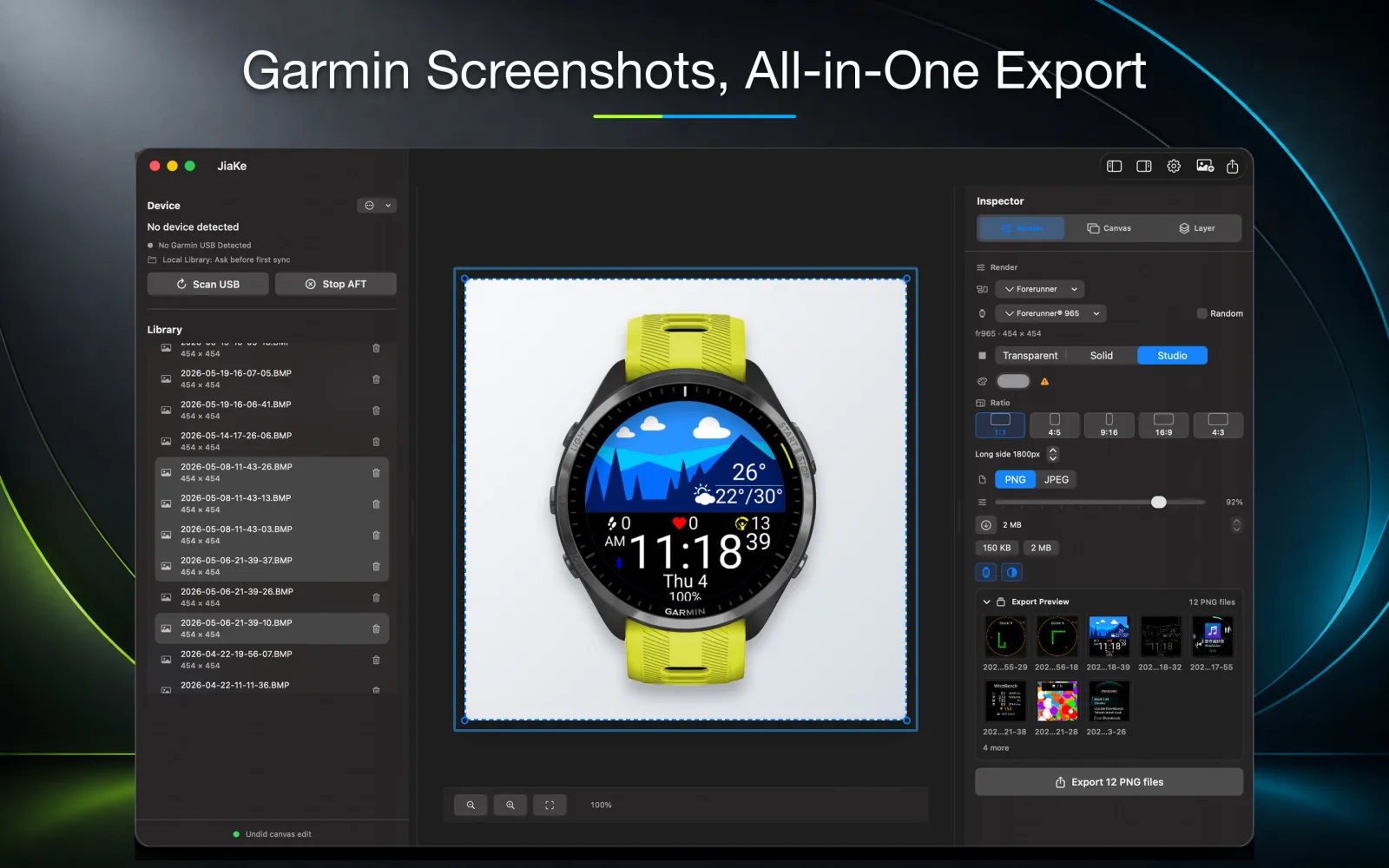
For many Garmin developers, the confusing part is not the screenshot itself. The confusing part is finding the file after the watch creates it.
On many Garmin devices, screenshot captures are stored under the watch storage path GARMIN/SCRNSHOT. The folder name is easy to miss because it is short, uppercase, and sits behind a file-transfer step on macOS.
Once the BMP file is on your Mac, the next job is turning it into a useful product image for a Connect IQ Store listing, documentation page, website, or launch post.
Start with the watch storage path
Connect the Garmin watch to your Mac with a USB cable, then open the device storage through Android File Transfer or the file-transfer method available for your device.
Look for the GARMIN folder first. Inside it, the screenshot folder is commonly named SCRNSHOT, so the full path to check is GARMIN/SCRNSHOT.
- Use uppercase GARMIN/SCRNSHOT when searching the watch storage.
- Copy the BMP files to a local folder before editing or exporting them.
- Keep the original BMP files as source material for future release assets.
Why the folder is easy to overlook
The folder name is not the word screenshots. It is SCRNSHOT. If you search only for a normal mixed-case screenshots folder, you can miss the captures even when the watch has created them correctly.
The path also sits behind a device-transfer step. On macOS, that usually means you are not browsing the watch like a normal Finder folder.
After finding the BMP files
A raw BMP screenshot shows the real Garmin interface, which is valuable. But it still lacks the product context needed for a polished listing or launch asset.
The traditional next step is to import the BMP into a design tool, find a watch frame, crop the screen shape, align layers, and export a PNG. That works, but it becomes slow when every new screenshot repeats the same steps.
Use JiaKe after the screenshot is found
JiaKe is designed for the workflow after the Garmin screenshot exists. Connect the watch, let the app copy screenshots into a local directory, select the image, choose a watch frame and preset style, then export.
That keeps the real Garmin capture as the source of truth while removing the repeated design-tool work around frames, masks, layer order, and export settings.
FAQ
What folder should I check for Garmin screenshots?
Check GARMIN/SCRNSHOT on the watch storage. The folder name is commonly uppercase and shortened to SCRNSHOT.
Are Garmin screenshots usually BMP files?
Garmin watch screenshots are often stored as BMP files, which can then be copied to a Mac and converted or exported into PNG assets.
Can JiaKe use screenshots copied from GARMIN/SCRNSHOT?
Yes. JiaKe is built around real Garmin BMP screenshots and can turn them into framed PNG exports.