Garmin watch screenshot
Continue from capture to a complete screenshot asset workflow.
How to screenshot on Garmin watch
Learn whether you can screenshot on a Garmin watch, how to activate the screenshot hot key, where to find saved screenshots, and how to prepare the capture as a PNG asset.
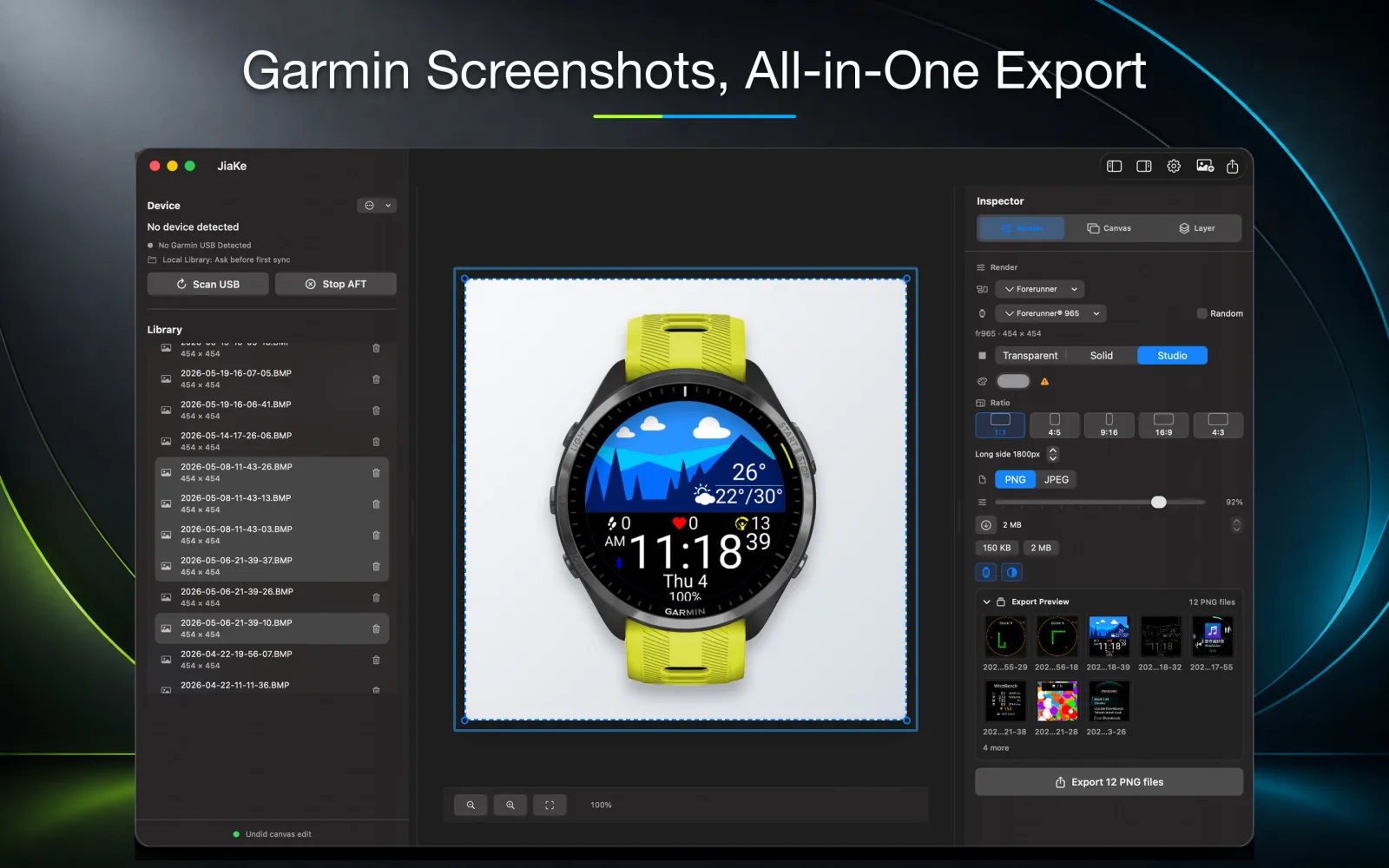
Capture first
The safest answer to how to screenshot on a Garmin watch is to check the model-specific Garmin support instructions first. Some watches use a configurable Screenshot Hot Key, while other models use a fixed button shortcut.
After the watch creates the screenshot, the file often needs a second workflow: copy it from the device, convert the BMP if needed, then prepare it for publishing.
Activate screenshot
If your Garmin watch has Hot Keys, open the watch menu, go to the system hot-key settings, choose a key or key combination, and set that action to Screenshot.
After the hot key is assigned, go to the screen you want to capture and hold the chosen key or combination until the watch saves the screenshot.
Model pages
A query for one exact Garmin model has a different intent from a broad Garmin watch screenshot guide. It should point to one canonical model page, not be repeated across a long generic article.
JiaKe.app maps Garmin Connect IQ device profiles into model pages so compact ids, Garmin-prefixed names, and product names can consolidate around the same canonical URL.
After capture
A raw screenshot is useful for proof and debugging. A product screenshot usually needs more work: a clean output format, a watch frame, consistent spacing, and export dimensions that fit a listing or page.
JiaKe.app is focused on that post-capture step for Garmin creators who need screenshot assets rather than only a file sitting on the device.
Workflow
The goal is not only to answer the search query. The goal is to move from a Garmin screenshot or BMP source file into a reusable asset that can support a real product release.
Related guides
Use these guides when you need to find Garmin screenshots, convert BMP files, or turn a raw capture into a framed image for publishing.
Continue from capture to a complete screenshot asset workflow.
Example model page covering fr965, Garmin 965, and Garmin Forerunner 965.
Find the screenshot file after the capture.
FAQ
Yes, many Garmin watches can save a screenshot, but the capture method depends on the model. Some watches use a Screenshot Hot Key, while others use a fixed button shortcut.
On models with Hot Keys, assign the Screenshot action in the watch's system hot-key settings, then hold the chosen key or key combination on the screen you want to capture.
If your Garmin model supports screenshot capture, yes. Check the model-specific Garmin support instructions or try the documented shortcut for your watch family.
No. Model-specific queries should map to canonical model pages so variants such as fr965, Garmin 965, and Garmin Forerunner 965 consolidate around one focused page.
After connecting the watch to a computer, check the watch storage under GARMIN\ScreenShot and copy the BMP files locally before converting or framing them.
No. JiaKe.app handles the workflow after the screenshot exists: import, frame, preview, and export.
JiaKe.app
Use JiaKe.app when a raw Garmin screenshot needs frames, presets, preview, batch export, and PNG output for Connect IQ listings, docs, product pages, and launch posts.