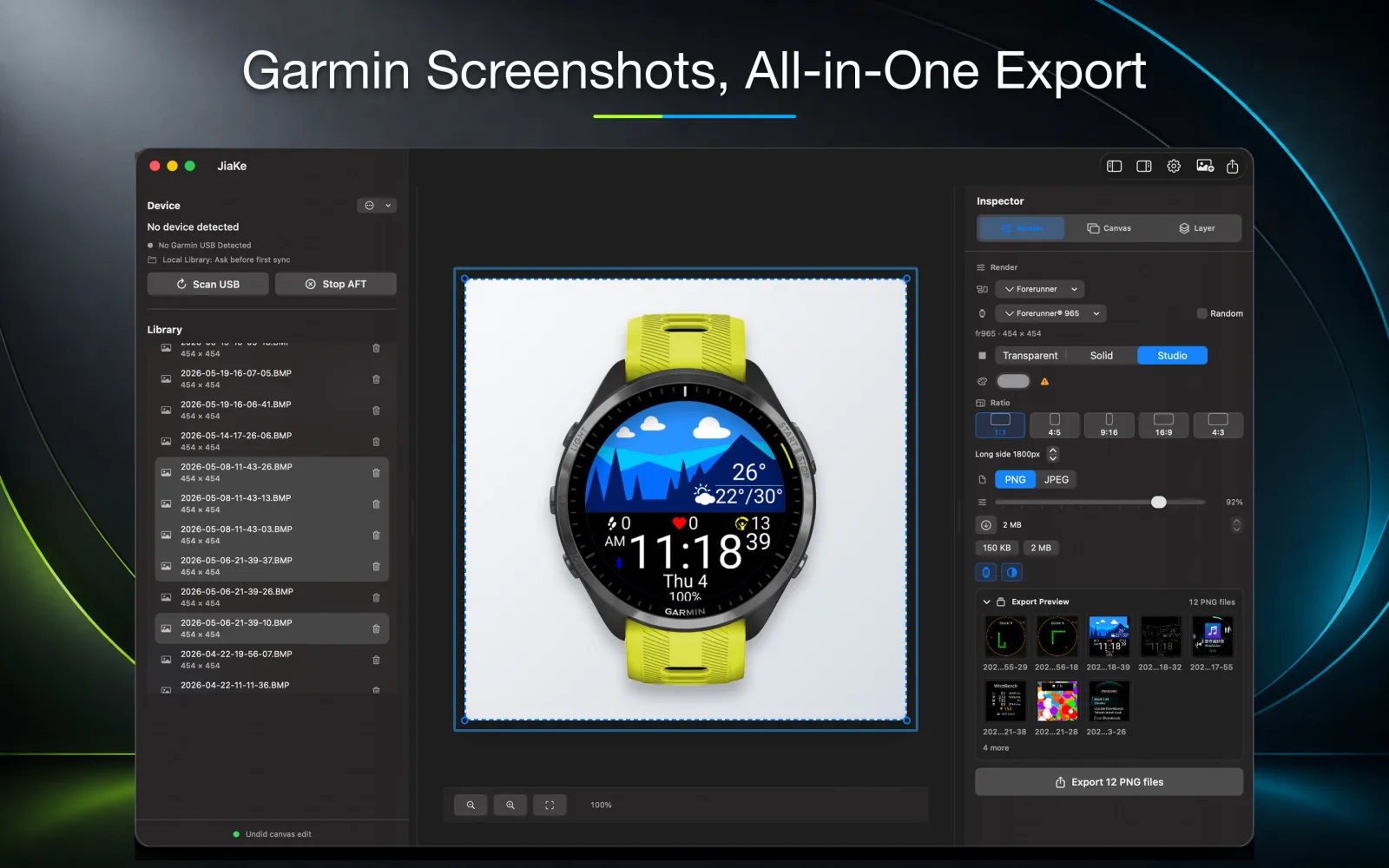
Garmin watch screenshots often start as BMP files. That is normal. BMP is a useful source format because it preserves the raw screen capture, but it is rarely the final format you want for publishing.
For most Connect IQ developers, the real job is not only "convert Garmin BMP to PNG." The real job is:
- Find the BMP file on the watch.
- Copy it to a local source folder.
- Convert it into a web-friendly format.
- Add a watch frame or layout if the screenshot is for a listing.
- Export a PNG or JPEG that stays readable and under size limits.
This article gives you a practical Garmin BMP to PNG workflow that works for app screenshots, watch face previews, documentation images, and launch posts.
Quick answer
To convert a Garmin BMP screenshot to PNG:
- Connect the Garmin watch to your computer.
- Copy the
.BMPfile fromGARMIN\ScreenShot. - Keep the BMP as the original source file.
- Convert the BMP to PNG with an image tool, converter, or JiaKe.app.
- If the image is for a listing or product page, add a device frame and export the final PNG at the required size.
If you only need a file format change, use the Garmin BMP to PNG converter. If you need a finished product image, use a workflow that also handles frames, backgrounds, export sizes, and compression.
Why Garmin screenshots are BMP first
BMP is simple and preserves the original screen pixels. That is useful for a watch screenshot because the source may contain small metrics, icons, data fields, and watch face complications.
The downside is that BMP files are not ideal as final web assets:
- BMP files are often larger than necessary.
- Some web and publishing workflows expect PNG or JPEG.
- A raw BMP screenshot does not include device context.
- Store and forum upload limits may require compression.
That is why a Garmin screenshot workflow usually treats BMP as the source and PNG as the publishing asset.
BMP vs PNG for Garmin screenshots
| Format | Best use |
|---|---|
| BMP | Original watch capture, local archive, source of truth |
| PNG | Clean screenshots, framed exports, documentation, web images |
| JPEG | Larger marketing images where file size matters more than pixel-perfect UI |
| GIF | Animated previews, when accepted by the upload destination |
Use PNG when the screenshot contains UI text, icons, maps, metrics, or watch face details. PNG usually keeps sharp edges cleaner than JPEG.
Use JPEG only when you need a larger composition with photographic backgrounds or when the destination requires a smaller file than PNG can provide.
Keep the BMP as the source of truth
Do not overwrite the original BMP files. Keep them in a source-bmp folder. If you later need a different export size, another background, or a new device frame, you can regenerate the asset from the original capture.
A simple release folder might look like this:
| Folder | Contents |
|---|---|
source-bmp | Original files copied from GARMIN\ScreenShot |
converted-png | Plain PNG conversions |
framed | Device-framed export projects or images |
store | Final Connect IQ Store images |
social | Launch post and documentation variants |
This structure matters when you maintain several Connect IQ apps or update screenshots frequently. The next release should not require you to rediscover the same conversion decisions.
Plain conversion is not enough for listings
A direct BMP-to-PNG conversion solves compatibility. It does not solve presentation.
The converted PNG may still look like a tiny isolated screen. For a personal note or quick bug report, that is fine. For a Connect IQ listing, product page, or release post, the screenshot often needs more:
- A Garmin watch frame.
- Correct round, square, or rectangular screen masking.
- Consistent padding and background.
- Export dimensions that match the destination.
- Compression that keeps the file under upload limits.
That is why a conversion workflow and a screenshot asset workflow are not the same thing.
A repeatable Garmin BMP to PNG workflow
Use this path for most production screenshots:
- Capture the screenshot on the Garmin watch.
- Copy the BMP from
GARMIN\ScreenShot. - Rename the file by feature, screen, device, or release version.
- Convert the BMP to PNG without resizing yet.
- Inspect the PNG at 100 percent to confirm colors and pixels are correct.
- Add a Garmin watch frame if the image is for public presentation.
- Export the final PNG or JPEG at the target size.
- Check the file size before upload.
The key is separating source conversion from final export. You may have one source screenshot but several final outputs.
How to choose the final PNG size
The best export size depends on where the image will appear.
| Destination | Practical export approach |
|---|---|
| Documentation | Keep the watch screen readable at article width |
| Product page | Use a frame, quiet background, and enough canvas space |
| Connect IQ Store screen image | Prioritize readability under the upload size limit |
| Hero or promo image | Use a wider composition, not just a stretched screenshot |
| Social post | Export square or vertical variants with consistent padding |
For Connect IQ assets, always check the current upload dashboard before finalizing. Garmin's brand guidelines list a 1440 x 720 hero image size, while current developer discussions around the store still mention tight file-size limits for cover and screen images.
Reduce file size without ruining readability
Garmin screenshots can contain dense UI. Avoid compression decisions that make small numbers or labels unreadable.
Try this order:
- Remove unnecessary empty canvas space.
- Use a simple background instead of noisy texture.
- Export PNG first for UI-heavy screenshots.
- If the PNG is too large, reduce the canvas size slightly.
- Use JPEG only when the image is mostly photographic or when PNG cannot meet the limit.
Check the final image at the real display size. A screenshot that looks fine on a large desktop preview may be unreadable in a small store card.
Use JiaKe.app for conversion plus framing
JiaKe.app focuses on the production work around Garmin BMP screenshots. It imports real captures, applies device frames, uses screen-shape aware layouts, previews output, and exports PNG or JPEG assets.
This is useful when you need more than one image. Instead of converting a BMP, opening a design tool, rebuilding masks, aligning frames, and exporting one file at a time, you can build a repeatable preset and reuse it across a screenshot set.
For a simple format conversion, use the web Garmin BMP to PNG converter. For publish-ready images, use the full Garmin screenshot frame workflow.
Common mistakes
Stretching the raw screenshot
Do not stretch a small watch screenshot to fill a large canvas. It can make text blurry and distort the UI. Instead, use a device frame and surrounding layout to create a larger asset.
Deleting the BMP after conversion
Keep the source BMP. You may need it when Garmin changes store requirements, when you update a listing, or when you want a different export size.
Using one image for every destination
A square cover image, wide hero image, documentation screenshot, and launch post have different constraints. Reuse the same source screenshot, but export different final variants.
Ignoring file-size limits until the end
Check size limits early. It is frustrating to design a perfect image and then discover it cannot be uploaded without heavy compression.
FAQ
Can Garmin BMP screenshots be exported as PNG?
Yes. Copy the BMP screenshot from the Garmin watch to your computer, then convert or export it as PNG.
Why not just convert BMP to PNG directly?
Direct conversion changes the file format, but it does not add device context, frame masking, layout consistency, upload sizing, or compression control.
Should I use PNG or JPEG for Garmin screenshots?
Use PNG for UI-heavy screenshots because it keeps text and edges sharp. Use JPEG for larger marketing compositions when file size is more important than exact UI pixels.
Where do Garmin BMP screenshots come from?
They are commonly copied from GARMIN\ScreenShot on the watch storage after you connect the Garmin device to a computer.
Can JiaKe create PNG exports from Garmin screenshots?
Yes. JiaKe.app imports Garmin screenshots, applies watch frames and presets, previews the result, and exports PNG or JPEG assets.