There is no single perfect Connect IQ screenshot size. A Garmin app listing, watch face promo image, documentation page, support article, and launch post all display images differently.
The practical goal is to prepare a small set of exports that stay readable, meet upload limits, and look consistent across channels. That usually means one source screenshot and several final images.
This guide focuses on Connect IQ app screenshots, Garmin watch face screenshots, and release assets made from real Garmin BMP captures.
Quick size reference
Always check the current Connect IQ upload dashboard before final delivery. Store requirements can change. As of the current public guidance and developer discussions, these are the important sizes and limits to plan around:
| Asset | Size or limit to plan around | Use |
|---|---|---|
| Hero image | 1440 x 720 px | Wide promo image, especially mobile store presentation |
| Cover image / icon-like store image | 500 x 500 px, commonly discussed with a 300 KB limit | Listing cover or square presentation |
| Screen images | JPG, GIF, or PNG, commonly discussed with a 150 KB per-image limit | App detail screenshots |
| On-device app icon | 128 x 128 px, sRGB | Optional Connect IQ store icon on devices |
Garmin's Connect IQ brand guidelines list the hero image dimension as 1440 x 720 px and the on-device app icon as 128 x 128 px. Developer forum discussions around current store uploads repeatedly mention 500 x 500 px cover images, 300 KB cover/icon limits, and 150 KB screen image limits. Treat those as practical constraints, then confirm against the upload form when publishing.
Start with the destination, not the raw watch screenshot
The Garmin watch screenshot is the source. It is not necessarily the final asset.
Raw watch screenshots are often small because they match the watch screen resolution. If you upload the raw capture directly, it may be technically accurate but visually weak. If you stretch it too much, it can become blurry.
A better workflow is:
- Keep the raw BMP or PNG capture as the source.
- Place it in a watch frame or clean layout.
- Export the final image at the destination size.
- Compress enough to meet the limit without losing readability.
Hero image: 1440 x 720
A hero image is wide. Do not simply enlarge a watch screenshot to fill 1440 x 720. Use the space for a controlled layout:
- A framed watch screenshot on one side or centered.
- A quiet background.
- Enough negative space so the screen remains readable.
- Optional text only if you are also preparing localized versions.
For a Connect IQ app, the hero image should explain the product quickly. For a watch face, it should show the face clearly and avoid hiding the screen behind large decorations.
Cover image: square and strict
The cover image behaves like a compact visual summary. Plan around a square export such as 500 x 500 px when preparing current Connect IQ Store assets.
The most common mistake is putting a full watch frame into a square canvas without checking the final small preview. If the watch is too small, users cannot read anything. If the watch is too large, the bezel may touch the edge or feel cropped.
Use a square composition with:
- Centered watch frame.
- Consistent padding.
- High screen readability.
- Simple background.
- Minimal or no text.
Screen images: readability under a small file limit
Screen images are where users inspect the app. They may be small and tightly compressed, so readability matters more than decoration.
Use PNG when the screenshot contains text, metrics, maps, or UI lines. If the PNG is too large, first reduce canvas size or simplify the background before switching to JPEG.
If you need several screen images, prepare them as a set:
| Screenshot type | Recommended purpose |
|---|---|
| Main screen | Show the primary value immediately |
| Settings or configuration | Show how the app can be customized |
| Data-heavy screen | Prove readability on a real watch layout |
| Watch face variant | Show style or complication differences |
| Device family variant | Show round, square, or AMOLED/MIP behavior |
Do not shrink dense Garmin screens too far
Garmin interfaces often contain small metrics, lap fields, labels, weather values, or watch face complications. If those details vanish, the screenshot stops explaining the product.
Check the final export at the size where users will actually see it. A large desktop preview is not enough. Open the image at a small width, view it on a phone, and check whether the core screen content is still understandable.
Match screen shape before choosing size
Size is only one part of a Connect IQ screenshot. Shape matters too.
Round screenshots need a round frame or circular mask. Square screenshots should stay square. Rectangular screenshots should keep their real proportions. A polished export with the wrong shape can still feel inaccurate.
For a screenshot set, group devices by shape:
- Round AMOLED watches.
- Round MIP watches.
- Square or rectangular devices.
- Edge or handheld devices, if relevant.
Then build export presets for each group instead of forcing every screenshot into one visual template.
Plan several exports from one source screenshot
One Garmin screenshot can become several assets:
| Output | Example use |
|---|---|
| Plain PNG | Docs, support, bug reports |
| Framed square image | Cover image or product card |
| Framed screen image | Store detail page |
| Wide composition | Hero or website header |
| Long canvas | Blog, release notes, comparison pages |
| Social square | Reddit, X, Facebook, or forum launch posts |
This is why it helps to keep the original BMP file and use repeatable export presets. You can generate the needed variants without redoing the capture.
Compression checklist
Before uploading:
- Confirm the required dimensions in the current Connect IQ upload form.
- Export PNG first for UI-heavy images.
- Check readability at the final display size.
- Check file size.
- Simplify background or reduce dimensions before adding heavy compression.
- Keep the original source screenshot and export project.
Compression should not be a last-minute emergency. If the design starts with too much texture, text, or unnecessary canvas area, meeting a small size limit becomes harder.
Use JiaKe.app for reusable Connect IQ screenshot sizes
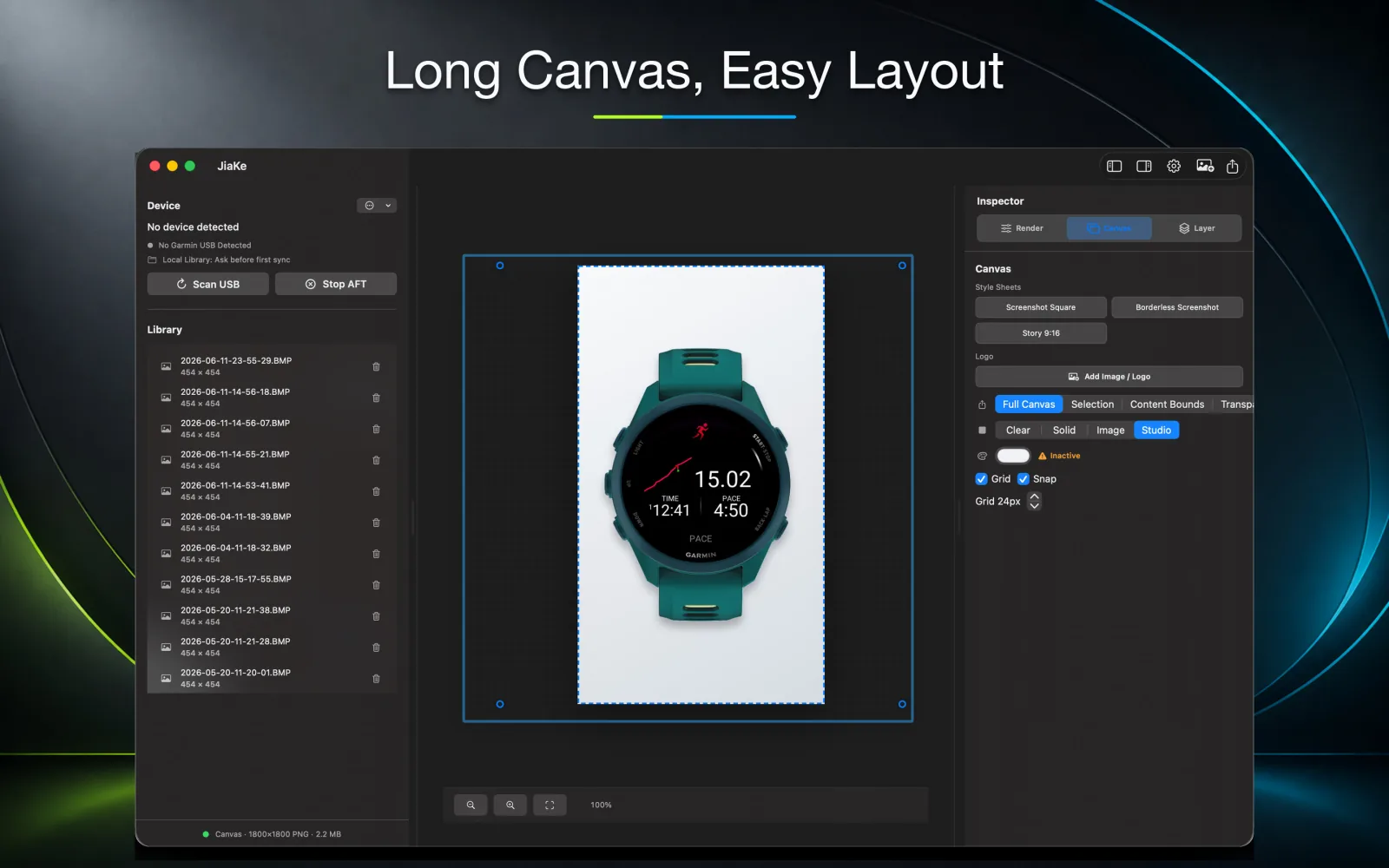
JiaKe.app helps turn Garmin BMP screenshots into framed exports with reusable presets. That matters because Connect IQ assets are rarely one image. You may need a square cover, several screen images, a wide hero image, documentation graphics, and launch post images.
Instead of rebuilding every screenshot in a general design tool, you can keep source screenshots, apply consistent device frames, preview output, and export PNG or JPEG variants.
For related workflows, see Garmin BMP to PNG, Garmin screenshot frame, and where Garmin watch screenshots are stored.
FAQ
What is the best size for Connect IQ screenshots?
Use the size required by the current Connect IQ Store upload field. Plan around 1440 x 720 px for hero images, 500 x 500 px for square cover-style images, and compressed JPG, GIF, or PNG screen images that stay under the current file-size limit.
Should I use the same layout for every screenshot?
Use the same visual system for a release set, but adjust export shape when a channel needs a square cover, a wide hero image, a detail screenshot, or a social post.
Should Connect IQ screenshots be PNG or JPEG?
Use PNG for screenshots with UI text, icons, metrics, or maps. Use JPEG for larger marketing compositions when file size matters more than exact UI edges.
Why do my screenshots look blurry after upload?
The source may have been stretched too far, compressed too heavily, or exported with too much detail for the size limit. Keep the watch screen readable and use a frame or layout to create a larger asset.
Can JiaKe export multiple screenshot styles?
Yes. JiaKe.app supports preset-based framed exports so the same Garmin screenshot can be prepared for listings, docs, product pages, and launch posts.