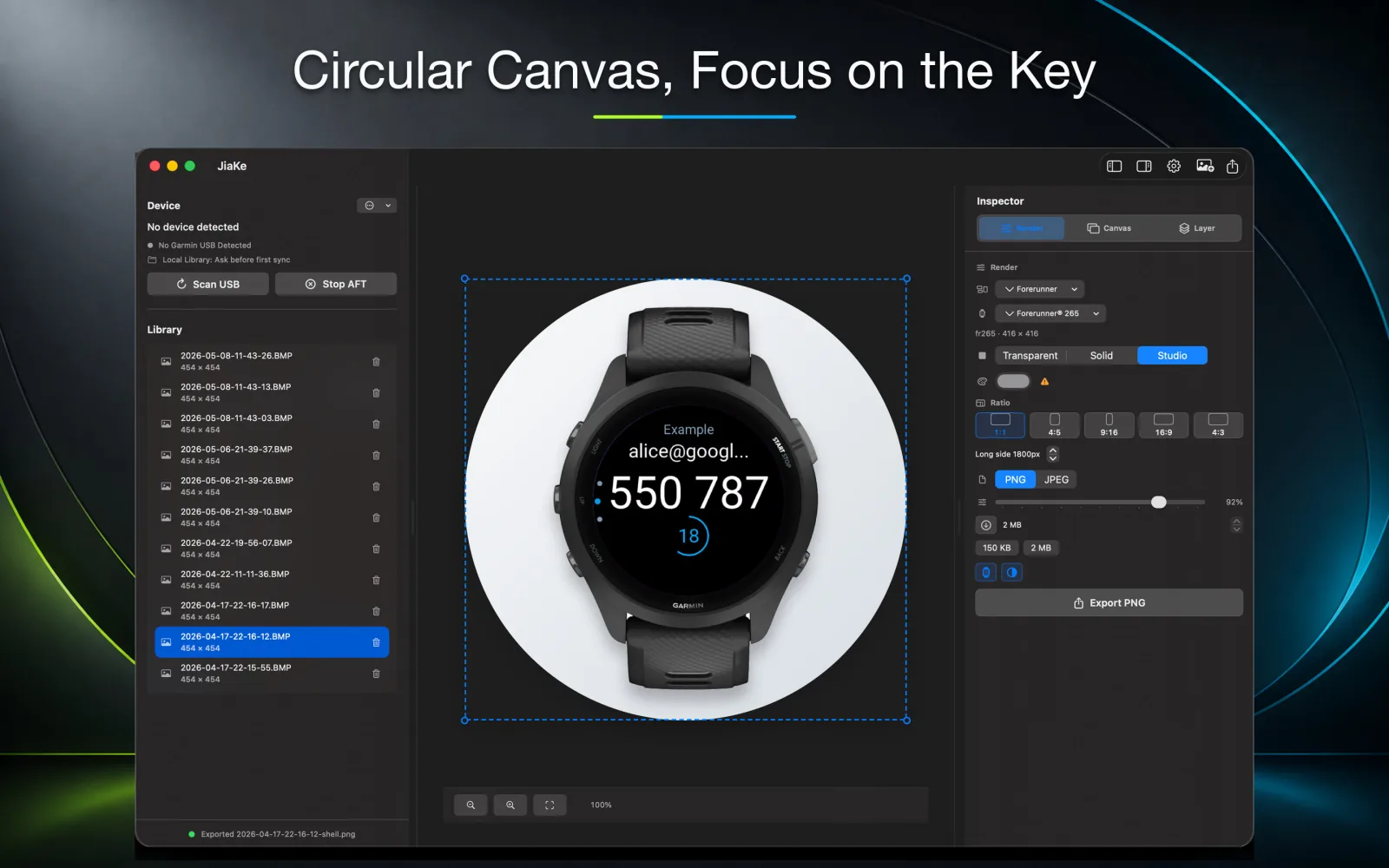
A Garmin screenshot by itself can feel like an isolated UI image. It shows the interface, but viewers may not immediately connect that screen with a real watch on the wrist. Adding a watch frame gives the image a clear device context and makes the interface feel grounded in an actual Garmin use case.
The key is restraint. The frame should clarify the screenshot, not hide it. A clean frame, balanced spacing, and a simple background usually work better than heavy decoration.
The problem is that adding the frame manually often turns into a small design-production job: find a frame file, prepare it, crop the screen to the correct shape, place the screenshot under the frame, fix the layer order, align the edges, and export.
Why manual framing takes time
After you retrieve the BMP screenshot from the watch, a design tool still needs a frame asset. That means searching through old files, downloading or rebuilding a frame, cleaning up the frame layer, and making sure the screen opening matches the screenshot shape.
Then comes the precision work. Round screens need a circular crop. Square and rectangular screens need their own masks. The screenshot has to sit behind the frame, not above it, and a tiny alignment mismatch becomes visible once the final PNG is used in a product page.
- Find or prepare a watch frame asset.
- Crop the screenshot into the screen shape.
- Place the screenshot at the correct layer depth.
- Drag, scale, and align until the frame looks believable.
Choose the right frame for the screen
Start by matching the screenshot to the device shape. A round watch face needs a round frame. A rectangular or square device screenshot should keep its original proportions. If the shape is wrong, the image can look polished but still feel inaccurate.
For product marketing, accuracy matters. Developers and users recognize device families, and a mismatch can make a Connect IQ app screenshot feel less trustworthy.
Keep the screen readable
After the screenshot is inside the frame, zoom out and check readability. Garmin screens can include small data fields, icons, labels, and complications. If those details vanish in the final export, the mockup is not doing its job.
A useful frame creates context while preserving the real screen content.
- Avoid over-scaling the frame when the screen contains dense data.
- Use enough padding so the watch does not touch the canvas edge.
- Prefer solid or quiet backgrounds for technical screenshots.
- Export a second size if the same image will be used in a small preview.
Use a consistent layout system
If you are preparing several screenshots, decide the rules once: frame size, background, alignment, text placement, and export dimensions. Then apply those rules across the set.
This is where manual design-tool work can become slow. A tiny alignment change in one screenshot can create a visual mismatch across the whole release, and fixing that mismatch means going back through masks, layers, positions, and export settings.
Frame screenshots locally with JiaKe
JiaKe keeps the framing step local on macOS. Connect the watch, let the app copy the screenshots to a local folder, select a screenshot, choose the watch frame and preset style, preview the layout, and export a clean PNG.
You still control the final image. JiaKe simply removes the repetitive setup around Garmin device frames: searching for frame files, cutting screen masks, arranging layers, dragging into place, and checking the same export settings again.
The value is speed plus consistency
A single manual frame may only cost a few minutes. A set of product images can cost much more because every screenshot repeats the same steps. If you maintain several Connect IQ apps or update screenshots often, that repeated work becomes expensive.
Using a dedicated frame workflow saves time per image and keeps the output consistent. The first benefit is faster production. The second benefit is fewer visual mistakes across the full screenshot set.
FAQ
Why add a watch frame to a Garmin screenshot?
A watch frame gives the screenshot product context and makes it look more finished for listings, websites, documentation, and launch posts.
Should the frame match the exact Garmin device?
Use the closest accurate shape and presentation style available. Matching the device shape is especially important for watch faces and interface-heavy screens.
Can JiaKe export framed Garmin screenshots as PNG files?
Yes. JiaKe imports Garmin screenshots, applies a device frame, and exports PNG images for release assets.