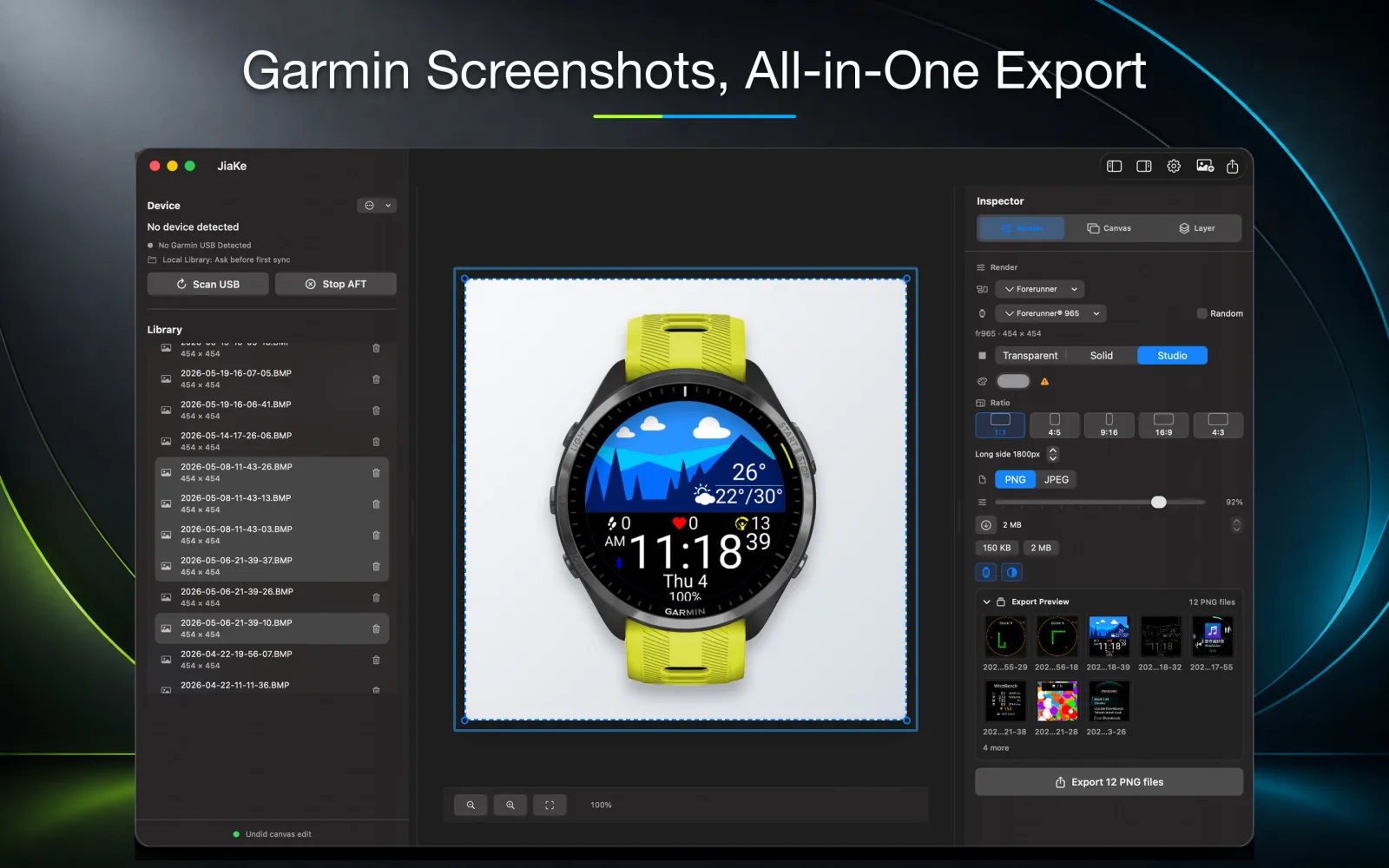
If you copy screenshots from a Garmin watch and find .BMP files, nothing is wrong. BMP is a simple bitmap image format, and some Garmin screenshot workflows use it as the raw capture format.
The problem is not that BMP is unreadable. The problem is that BMP is rarely the format you want for publishing, documentation, or product images. Most workflows need PNG for lossless release assets or JPG for smaller shareable files.
What a BMP file is
BMP stands for bitmap. A BMP file stores image pixels in a straightforward layout, usually with very little compression.
That simplicity is useful for embedded devices. The format is easy to write, easy to inspect, and does not require the same compression pipeline that formats like PNG or JPG need.
Why Garmin screenshots can use BMP
Garmin screenshots are device captures. The watch or device needs to store the screen quickly and predictably. BMP is a practical source format for that job.
For a user, though, the raw source is only the first step. Once the screenshot leaves the watch, you usually want to convert it into a format that fits the next job.
When to convert Garmin BMP to PNG
PNG is usually the best format when the screenshot needs to stay sharp:
- Connect IQ Store listing images
- App documentation
- Watch face previews
- Product pages
- Release notes
- Framed Garmin screenshot mockups
PNG is lossless, so small text and UI edges stay clean. If you are preparing app store assets or polished screenshots, start with PNG.
When JPG makes sense
JPG is useful when file size matters more than perfect pixel fidelity.
Use JPG for quick sharing, email attachments, or lightweight web pages. It is not ideal for tiny UI text, but it can be good enough for casual previews.
BMP is the source, not the final asset
Think of the Garmin BMP as the source capture. Keep it unchanged, then export publishing versions from it.
That gives you a clean workflow:
- Capture the screenshot on the Garmin device.
- Copy the BMP file from the watch.
- Convert the BMP to PNG or JPG.
- Use JiaKe.app when the image also needs a Garmin device frame, layout preset, and final export size.
What to do next
If you only need a file format change, use a BMP to PNG converter. If you need a polished Garmin screenshot asset, use the BMP as the source and then create a framed export in JiaKe.app.
That distinction matters. A converter changes the file. JiaKe.app prepares the screenshot for publishing.