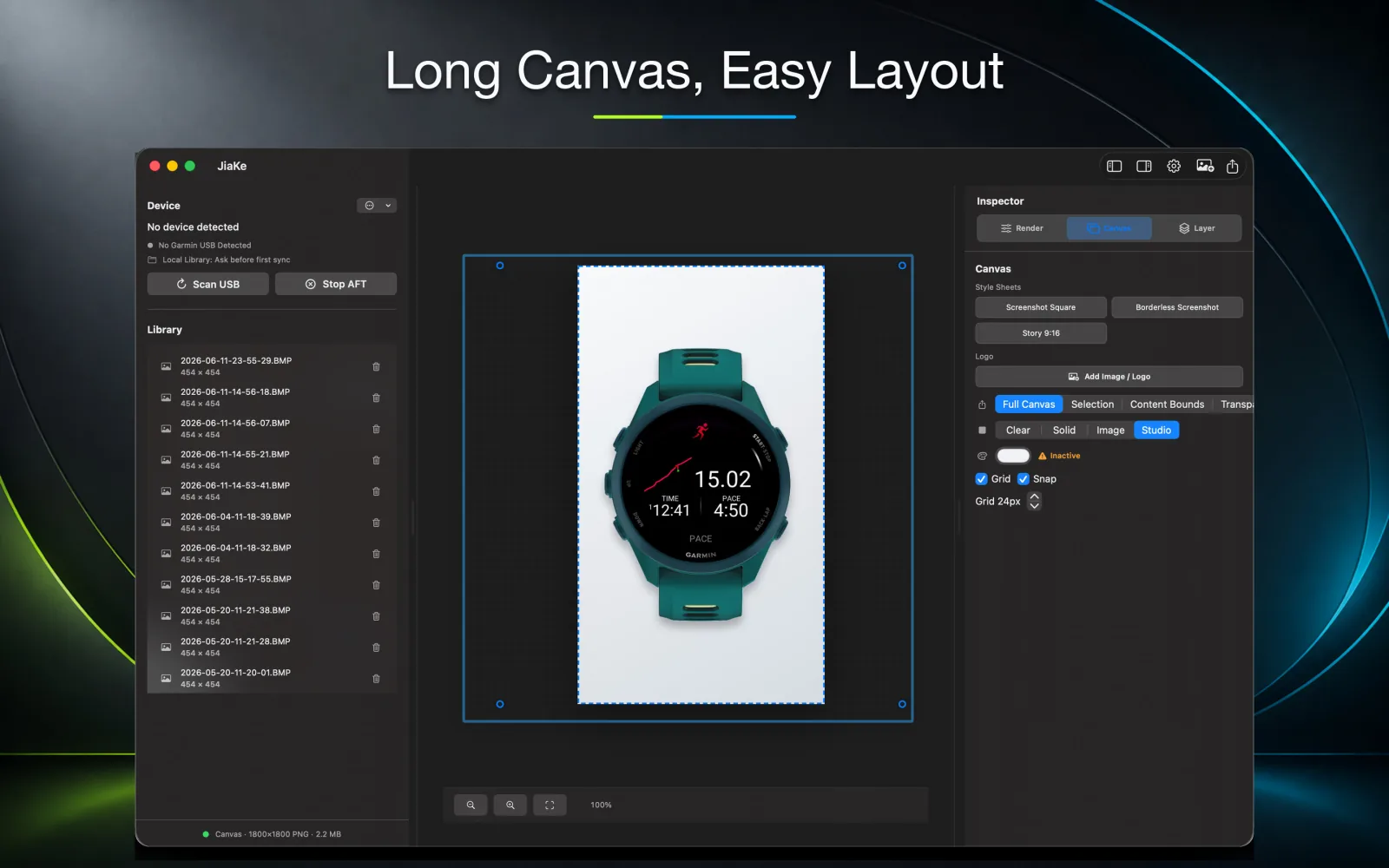
On Mac, Garmin screenshot work usually has two separate jobs: getting the BMP files out of the watch and preparing final images for publishing.
A converter can handle the file format. JiaKe.app is built for the whole screenshot asset workflow.
Step 1: Capture screenshots on the Garmin device
Start with real screenshots from the watch or Garmin device. The exact capture shortcut can vary by model, so check the Garmin support page for your device if needed.
Once captured, the screenshots may appear as BMP files.
Step 2: Copy the BMP files to your Mac
Connect the Garmin device to your Mac and locate the screenshot folder. In many workflows, users look for a folder such as GARMIN/SCRNSHOT.
Keep the original BMP files in a local source folder. Do not overwrite them during conversion.
Step 3: Decide between PNG and JPG
Use PNG when the image is for a listing, documentation, product page, or watch face preview. PNG keeps the Garmin UI sharp.
Use JPG when the image is only for lightweight sharing and file size matters more than perfect detail.
Step 4: Create the publishing asset
If you only convert BMP to PNG, the result is still a raw screenshot. That is fine for documentation, but not always enough for app listings or marketing images.
JiaKe.app adds the missing production step:
- Garmin device frames
- reusable style presets
- preview before export
- PNG output for listings and docs
- repeated exports without rebuilding masks in a design tool
Why this matters for Connect IQ work
Connect IQ app pages, watch face previews, and launch posts need consistency. If every screenshot is prepared manually, small differences in padding, scale, and frame placement add up.
A repeatable Mac workflow saves time because each new screenshot follows the same process.
Recommended Mac workflow
- Capture screenshots on the Garmin device.
- Copy the BMP files to your Mac.
- Keep a source folder with the original BMP files.
- Use a converter for quick PNG/JPG output.
- Use JiaKe.app when you need framed Garmin screenshot exports.
This keeps raw capture, conversion, and publishing assets clearly separated.