BMP and PNG can both store a Garmin screenshot, but they are useful at different points in the workflow.
BMP is a good source format. PNG is usually the better publishing format.
Quick comparison
| Format | Best use | Strength | Weakness |
|---|---|---|---|
| BMP | Raw Garmin screenshot source | Simple and predictable | Larger files, less convenient for publishing |
| PNG | Final screenshot asset | Lossless quality and web compatibility | Still larger than JPG |
| JPG | Lightweight sharing | Small files | Compression artifacts around UI text |
Why BMP appears in Garmin workflows
Garmin screenshots can start as BMP because the format is simple for a device to write. That makes it useful as a capture format.
But a raw capture is not always ready for the destination. A Connect IQ Store image, product screenshot, or app documentation image usually needs a more portable output.
Why PNG is better for final assets
PNG preserves sharp UI edges, small text, and pixel-level details. That is important for Garmin screenshots because watch screens often include compact numbers, icons, charts, and labels.
When you convert Garmin BMP to PNG, you get a file that works better in browsers, docs, app listings, and design tools.
Where JiaKe.app fits
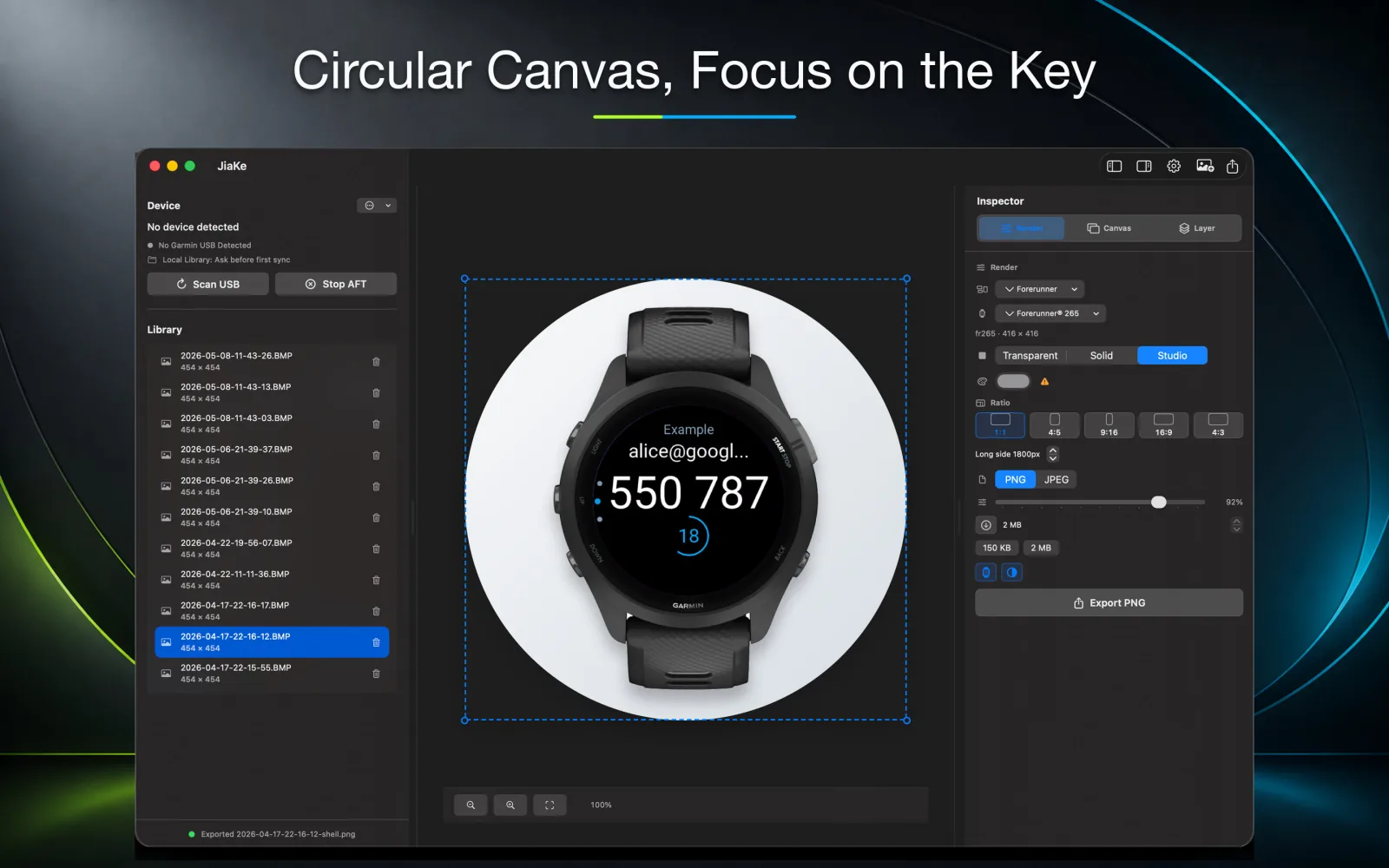
A plain BMP-to-PNG conversion gives you a PNG file. JiaKe.app handles the next step: turning that screenshot into a framed Garmin asset.
That includes the device frame, canvas size, background, preset style, preview, and export.
Recommended workflow
Use this order for repeatable Garmin screenshot work:
- Keep the original BMP files.
- Convert to PNG when you need a clean lossless image.
- Use JiaKe.app when the PNG should become a framed app listing or launch asset.
- Export JPG only when file size matters more than perfect UI detail.
Bottom line
Keep BMP as the source. Use PNG as the working and publishing format. Use JiaKe.app when the screenshot needs to look like a product asset instead of a raw capture.