Garmin Descent screenshot
How do you take a screenshot on Garmin Descent Mk3i 51mm?
How to screenshot on Garmin Descent Mk3i 51mm, including descentmk351mm and Garmin Descent Mk3i 51mm searches, then find BMP files in GARMIN\ScreenShot and export clean PNG assets.
Quick answer
Use the current Garmin instructions for this exact model before capturing.
Garmin screenshot shortcuts vary by model. Some watches use a configurable Screenshot Hot Key; other watches use a fixed button shortcut or a newer action-button setting.
The Connect IQ profile tells us this is a Garmin watch or wearable profile, but it does not define the physical screenshot shortcut. Use the official model instructions for the capture step, then use GARMIN\ScreenShot for the saved file.
Model profile
- Connect IQ device id: descentmk351mm
- Screen profile: AMOLED display, 454 x 454
- Device family: round-454x454
- Saved screenshots:
GARMIN\ScreenShot
After capture
Find the saved BMP, then turn it into a publishable asset.
Once Garmin Descent Mk3i 51mm saves the capture, the screenshot is still a raw source file. Copy it from GARMIN\ScreenShot, keep the BMP unchanged, and export PNG when the image needs to appear in a Connect IQ listing, support article, product page, or launch post.
- Confirm the capture shortcut for Garmin Descent Mk3i 51mm.
- Take the screenshot on the watch.
- Connect the device to a computer.
- Copy the BMP file from
GARMIN\ScreenShot. - Convert or frame the screenshot for publishing.
FAQ
Garmin Descent Mk3i 51mm screenshot FAQ
How do you take a screenshot on Garmin Descent Mk3i 51mm?
Check Garmin's current model-specific screenshot instructions first. If the watch supports screenshot capture, use the assigned hot key, fixed shortcut, or model-specific action-button flow.
Where are Garmin Descent Mk3i 51mm screenshots stored?
After capture, connect the watch to a computer and check the device storage folder GARMIN\ScreenShot for the saved BMP screenshot file.
Can JiaKe.app take the screenshot on Garmin Descent Mk3i 51mm?
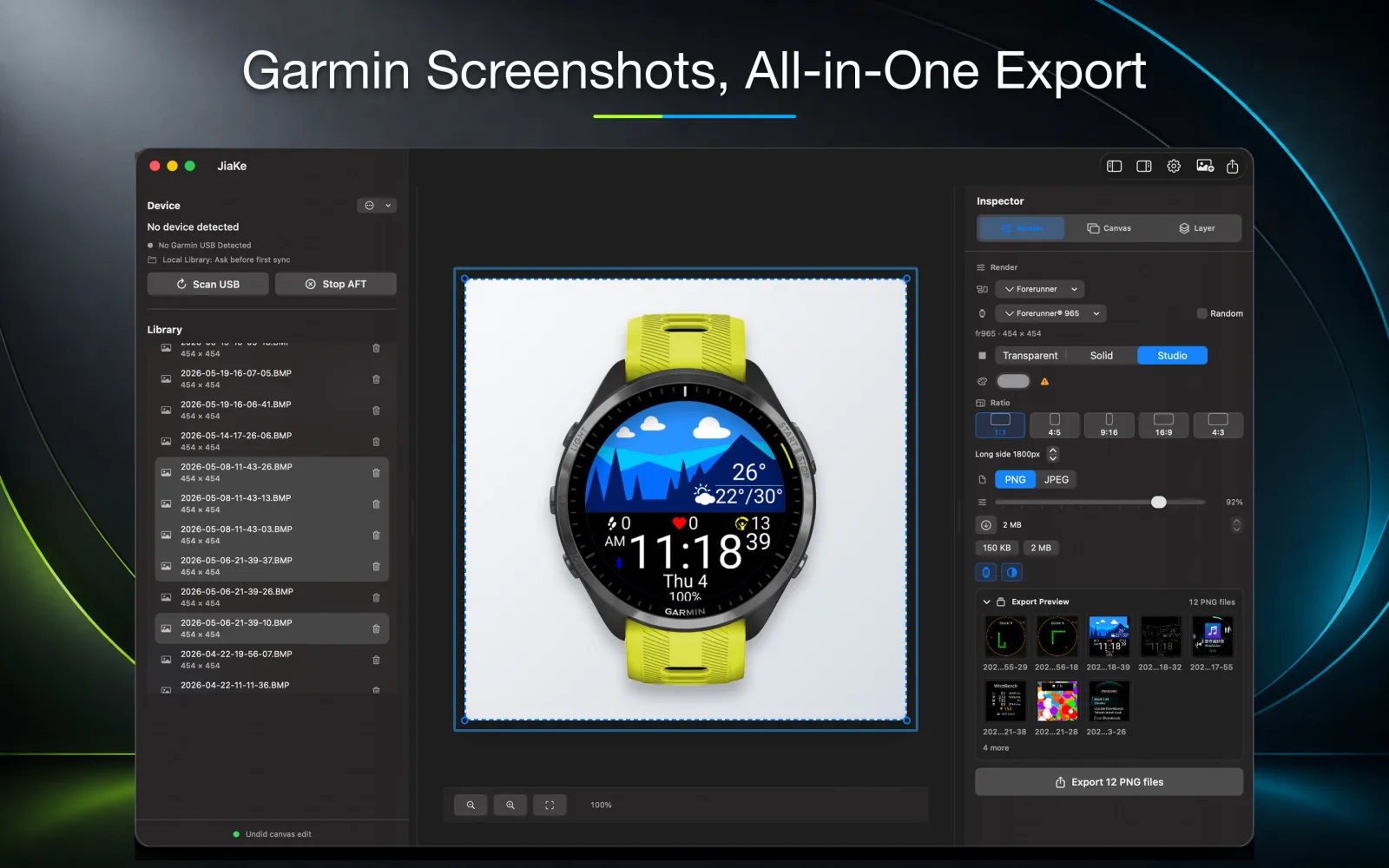
No. JiaKe.app works after the screenshot exists: import the Garmin BMP file, convert it when needed, apply frames, and export PNG assets.
What should I do after capturing a Garmin Descent Mk3i 51mm screenshot?
Copy the original BMP file from GARMIN\ScreenShot, keep it as the source capture, then convert or frame it for Connect IQ listings, documentation, product pages, or launch posts.
JiaKe.app
Create publish-ready Garmin screenshot assets on Mac.
Use JiaKe.app after the capture exists: import Garmin BMP screenshots, apply frames and presets, preview the result, and export PNG assets for Connect IQ listings, docs, product pages, and launch posts.