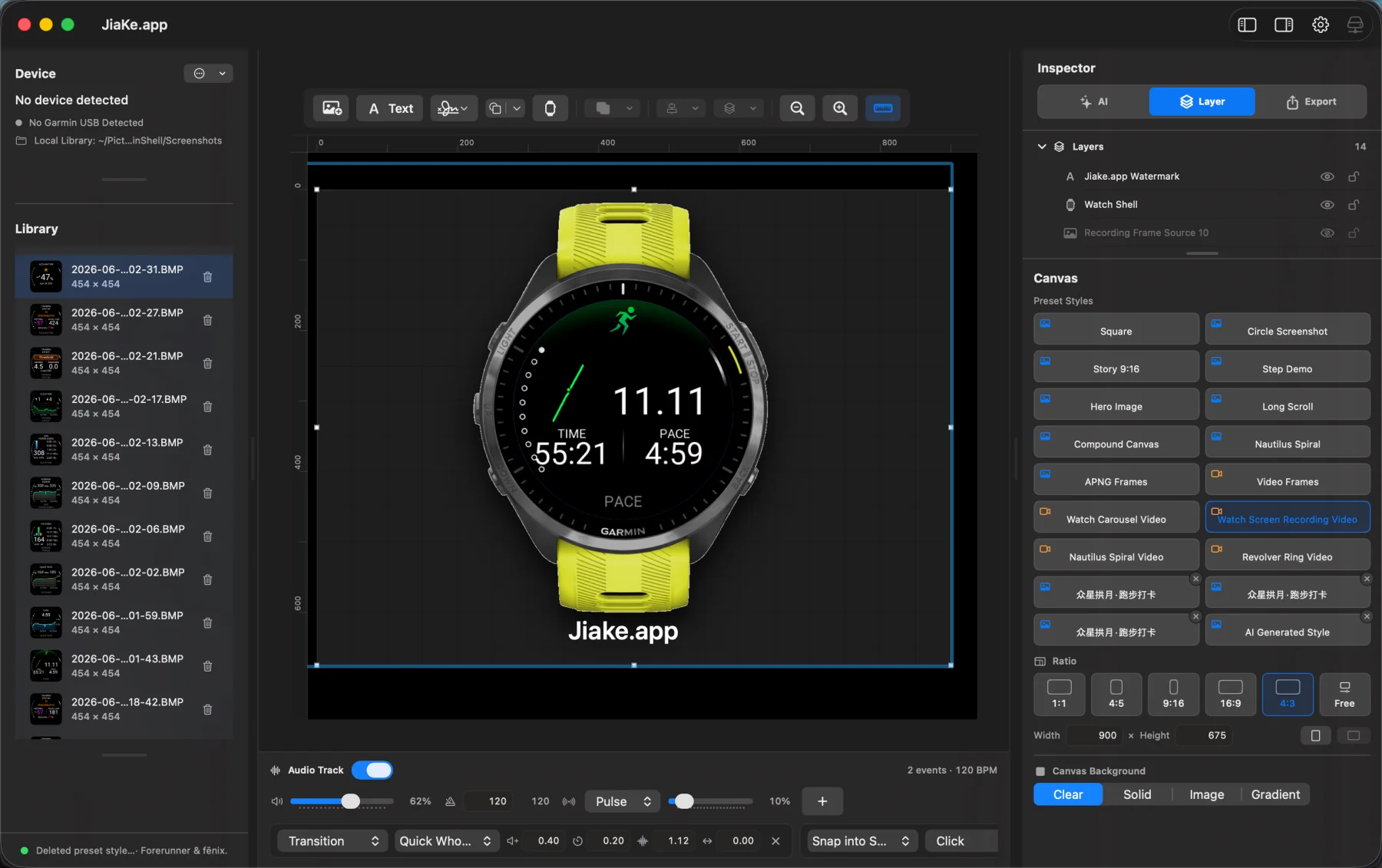
If you are searching for "how to make Garmin record screen video," the short answer is: most Garmin watches do not work like a phone screen recorder. The practical workflow is to capture real Garmin screenshots, retrieve them from the watch, and turn those screenshots into a video-style demo.
That is often enough for Connect IQ apps, watch faces, data fields, workout screens, support tutorials, and launch posts. The result is not a native live recording from inside the watch. It is a polished Garmin screen recording style video made from real screenshots.
Quick answer
Use this workflow:
- Take several screenshots on the Garmin watch.
- Connect the watch to your computer.
- Copy the screenshots from
GARMIN\ScreenShot. - Import the BMP screenshots into JiaKe.app.
- Choose a video preset style, such as Watch Screen Recording Video.
- Adjust the ratio, watch shell, timing, transition, and watermark.
- Export the video-style asset.
For many product demos, this is cleaner than filming the physical watch. The screen stays sharp, the frame is consistent, and you can remove weak screenshots before export.
Can you record a Garmin watch screen?
Usually, not directly.
If you need to show real button presses, hand movement, or touch interaction, film the watch with a camera. If you need a clean UI demo, make a video from screenshots instead.
On many Garmin watches, screenshots are saved as BMP files. After connecting the watch to a computer, the screenshot folder is commonly:
GARMIN\ScreenShot
If your real problem is how to retrieve screenshots from a Garmin watch, start there first. Once the files are on your Mac, JiaKe.app can turn them into framed images or video-style assets.
Capture the source screenshots
The exact shortcut depends on your Garmin model, but the workflow is usually:
- Open watch settings.
- Go to System, Controls, Hotkeys, Shortcut, or the closest model-specific menu.
- Assign screenshot capture if needed.
- Open the watch face, app screen, data page, or workout screen you want to show.
- Capture one screenshot for each important state.
Capture deliberate states instead of random frames. A short Garmin watch demo can work well with just a few clear screenshots:
- Start screen or watch face.
- First app state.
- Active workout or data screen.
- Result, summary, or final screen.
Build the video in JiaKe.app
After the screenshots exist, use JiaKe.app to make the video effect:
- Import screenshots from the connected watch or local library.
- Select the Garmin BMP screenshots you want to use as frames.
- Choose the matching watch shell.
- Open Preset Styles.
- Pick Watch Screen Recording Video, Video Frames, Watch Carousel Video, or another motion preset.
- Choose the output ratio: 1:1, 4:3, 16:9, or 9:16.
- Tune timing, transition, background, audio, and watermark.
- Export.
The preset removes the repetitive design work: frame placement, watch shell alignment, canvas sizing, motion pattern, and brand mark placement. You still control the final look, but you are not starting from a blank timeline.
Sample result:
When to use each method
Use a camera when you need to prove real interaction. Use JiaKe.app when you need a clean Garmin app demo, watch face preview, Connect IQ marketing video, support clip, or product page asset.
If you only need one still image, use the Garmin BMP to PNG converter. If you want a framed still, use the Garmin screenshot frame tool. If you want preset styles and video-style exports, use the Mac app.
FAQ
Can Garmin watches record screen video directly?
Usually not like a phone or desktop screen recorder. For most Garmin watch workflows, use screenshots and build the video afterward.
How do I make a Garmin screen recording video?
Capture several Garmin screenshots, copy them from GARMIN\ScreenShot, import them into JiaKe.app, choose a video preset style, adjust the canvas, and export.
Is a screenshot-to-video export misleading?
No, if you describe it honestly. It is a video-style demo made from real Garmin screenshots, not a native live recording captured inside the watch.
Can I use this for Connect IQ apps?
Yes. This workflow is useful for Connect IQ app demos, watch-face launches, data field explanations, support docs, and product pages.