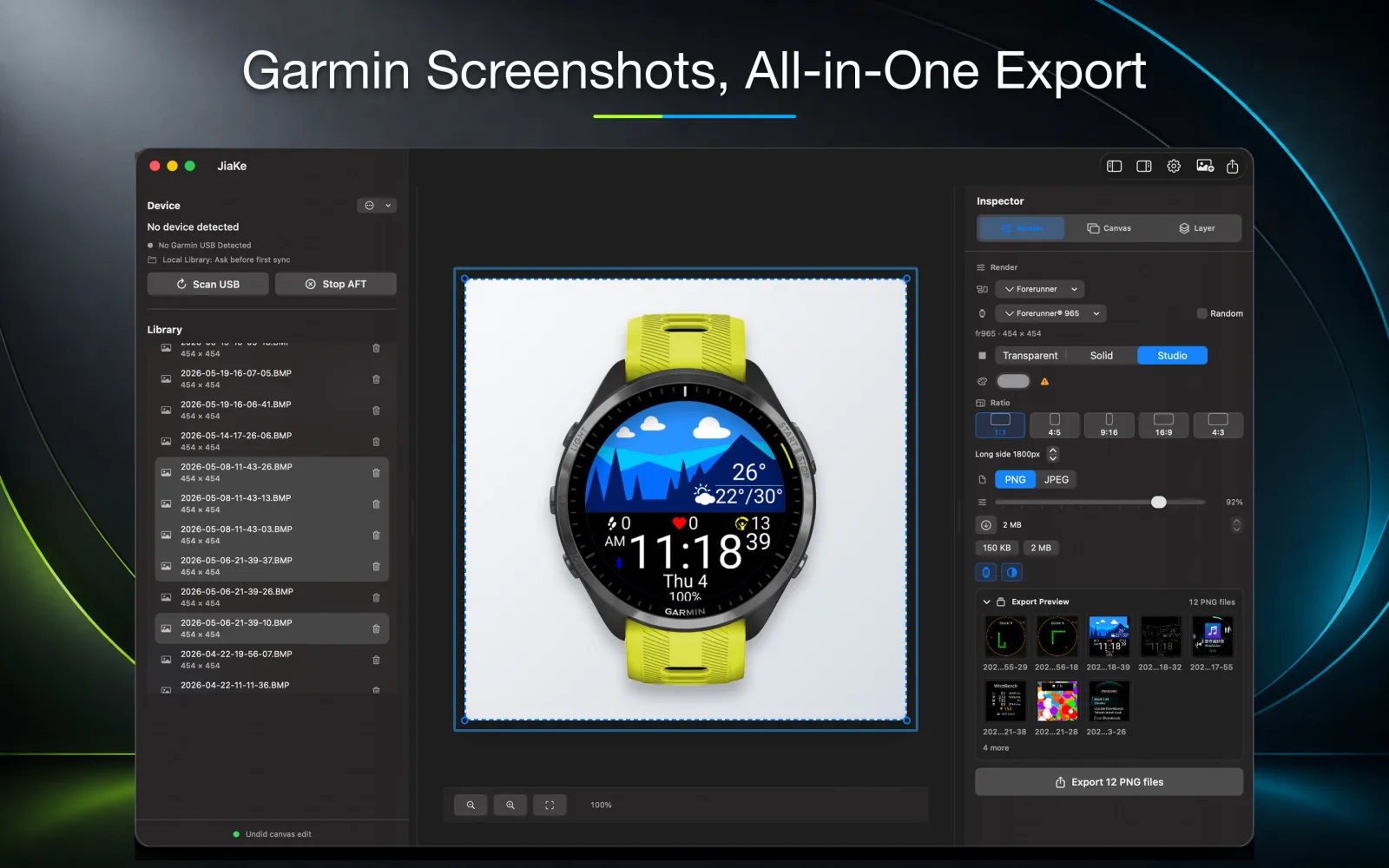
Windows users can convert Garmin BMP screenshots to PNG or JPG with a browser-based converter or a desktop image tool. If you only need a clean PNG output, start with the Garmin BMP to PNG converter.
What Windows users usually need
The common Windows workflow is simple:
- Copy BMP screenshots from the Garmin device.
- Convert BMP to PNG for clean screenshots.
- Convert BMP to JPG only when smaller files are needed.
- Prepare framed images for docs, listings, or product pages.
The fourth step is where a dedicated desktop app can save time.
Convert BMP to PNG on Windows
PNG is the safer output for Garmin screenshots because it preserves small UI details. Use it for Connect IQ Store assets, documentation, watch face previews, and product pages.
For a quick browser workflow, open the Garmin BMP to PNG converter, choose the BMP file copied from your Garmin device, and export a PNG without installing a desktop image editor.
Convert BMP to JPG on Windows
JPG is useful for email, quick sharing, or smaller web images. It can add artifacts around small text and icons, so it is not the best default for Garmin UI screenshots.
If the screenshot is meant to look polished, convert to PNG first.
Prepare screenshots after conversion
After conversion, keep the original BMP as your source file and export PNG for any screenshot that needs sharp UI text, maps, icons, or watch face details. Use JPG only when a smaller file matters more than pixel-perfect edges.
If the screenshot needs a Garmin watch frame, layout preset, or batch export, move the converted file into a dedicated screenshot workflow instead of rebuilding the same layout by hand in a general design tool.